Profile, Devices, and Sessions
Open your profile
Section titled “Open your profile”- Select your picture or initials at the top of the screen.
- Select Profile.
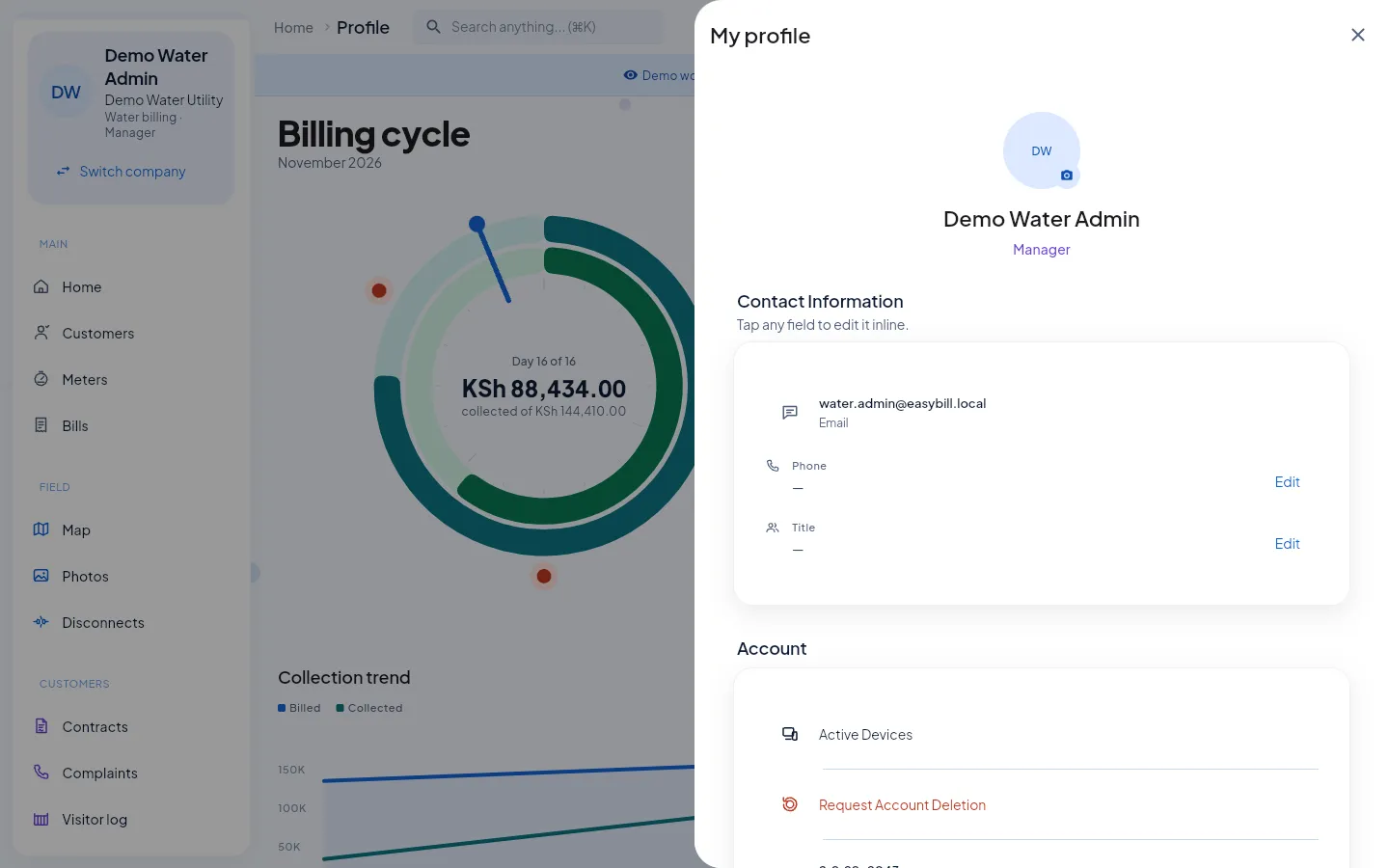
My profile shows your Email, Phone, and Title. Select Edit beside the phone or title to change it, or Change photo to update your picture. Your email address cannot be edited here.
Under Account you also find:
- Active Devices: see where you are signed in.
- Request Account Deletion: opens an email to support with your account details. Some billing, payment, audit, legal, or security records may need to be kept where required.
- App Version: the version you are running. Quote it when you contact support.
From the same menu, Switch Company moves between companies you belong to and Sign Out ends your session on this device.
See where you are signed in
Section titled “See where you are signed in”- Open Profile, then Active Devices.
- Read the list. Each row shows the device name and when it was Last active. The one you are using is marked This device.
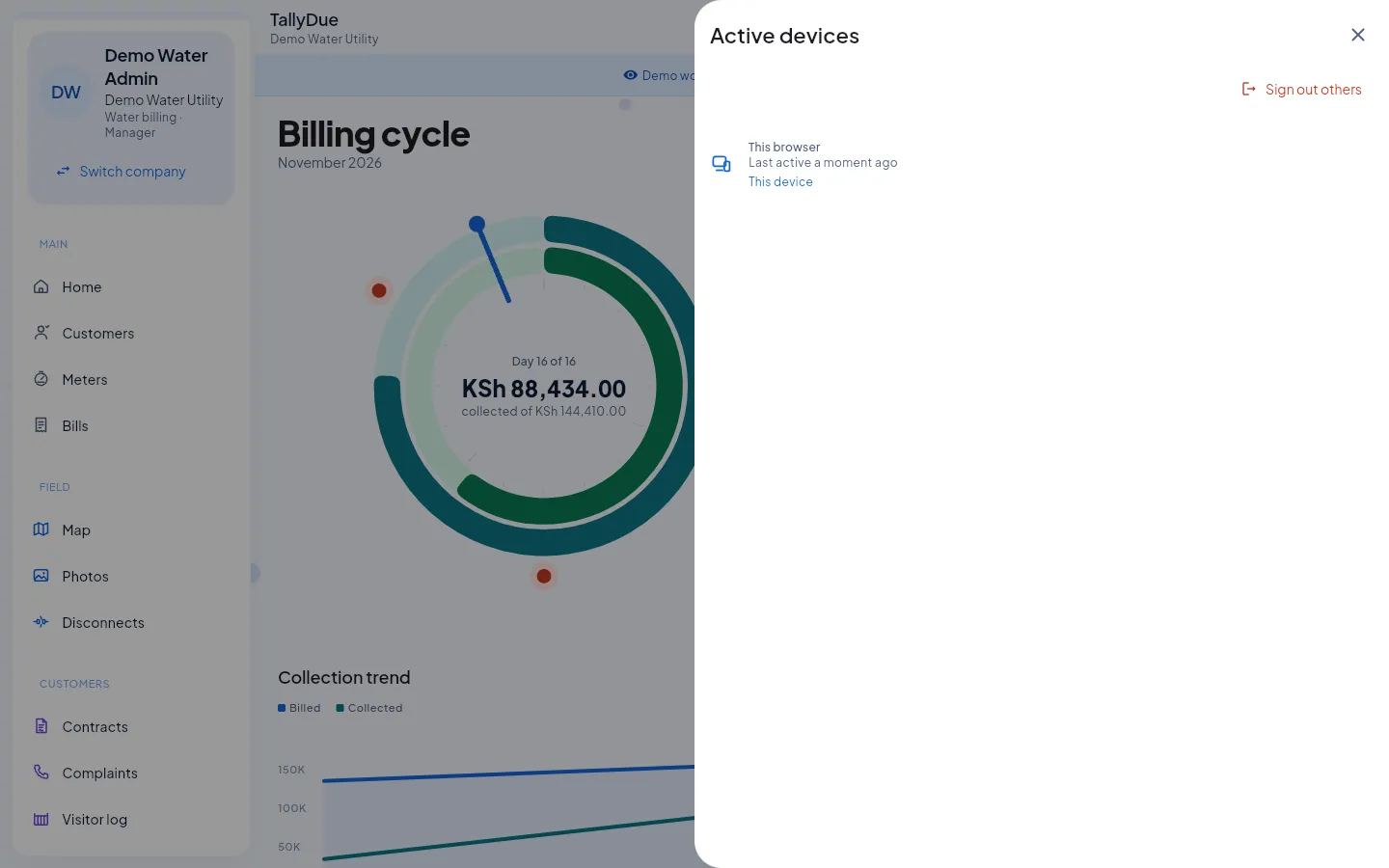
If you see a device you do not recognise, sign it out and change your password.
Sign out one device
Section titled “Sign out one device”Select End session on the row. A “Session ended” message confirms it. That device has to sign in again.
Sign out all other devices
Section titled “Sign out all other devices”- Select Sign out others.
- Confirm Sign out all other devices? by selecting Sign out.
You stay signed in on the device you are using. TallyDue tells you how many other devices were signed out, or “No other active sessions found”.
Do this when a phone is lost, when someone borrowed your login, or after you reset your password.
For admins: see and end team sessions
Section titled “For admins: see and end team sessions”Admins who can manage staff can review everyone’s sessions. In a water company, open Setup → Active Sessions.
The list shows each person’s Staff name, Email, Platform (Android, iOS, Web, or Desktop), Started time, Last Active time, Status, Device, and Duration. Use the date range at the top to look further back.
To remove someone from every device immediately:
- Find the person.
- Select Force Logout.
- Confirm. All of their active sessions end.
This signs them out but does not delete their account. To stop them signing in again, disable the account or revoke access. See Team Management.