Channels and Analytics
A channel is a booking source: Direct Booking, Airbnb, Booking.com, or a broker. Tagging each booking with its channel shows where your income comes from.
See your channels
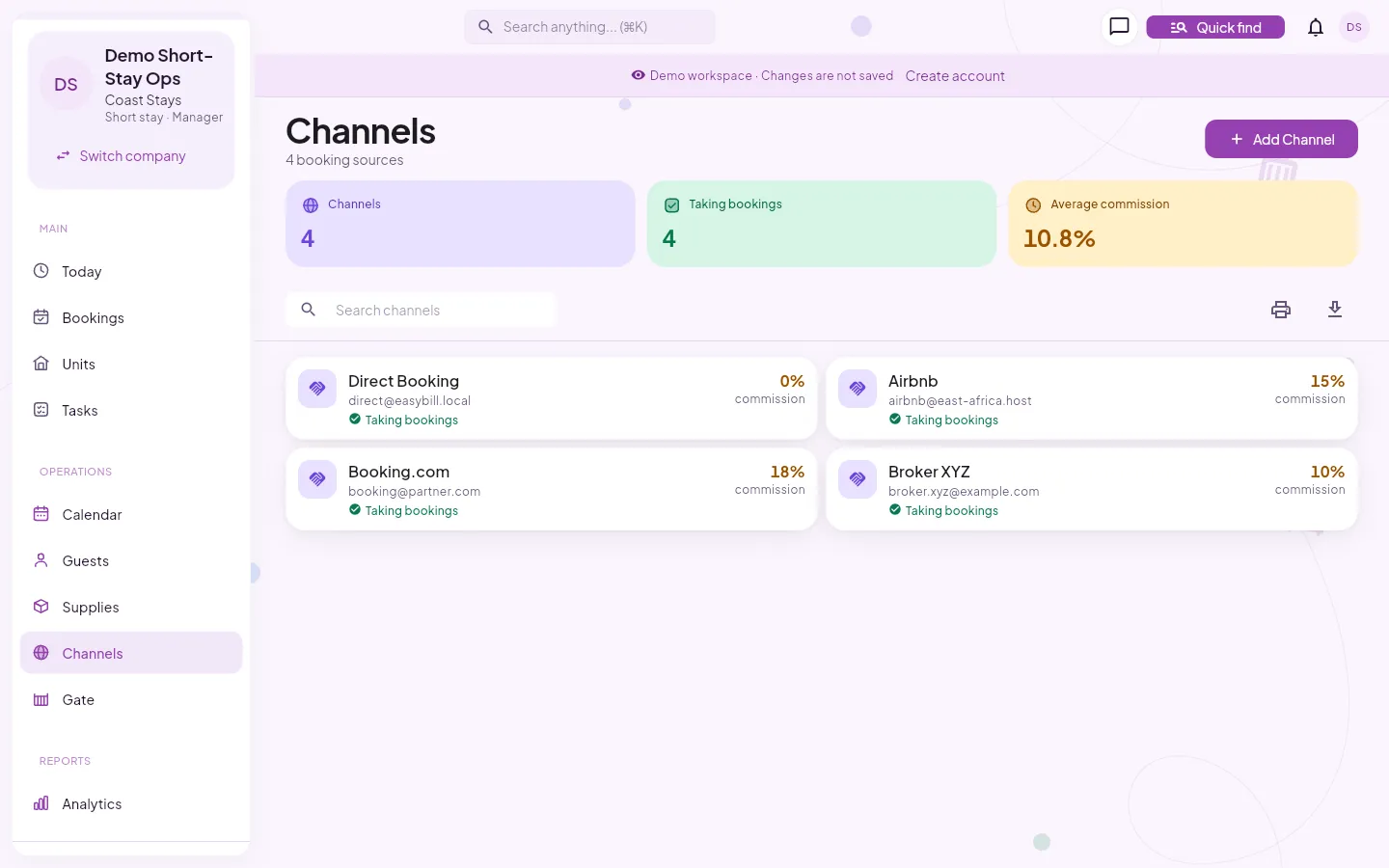
Section titled “See your channels”- Select Channels in the left menu.
- Check the counters: the number of channels, how many are Taking bookings, and the Average commission.
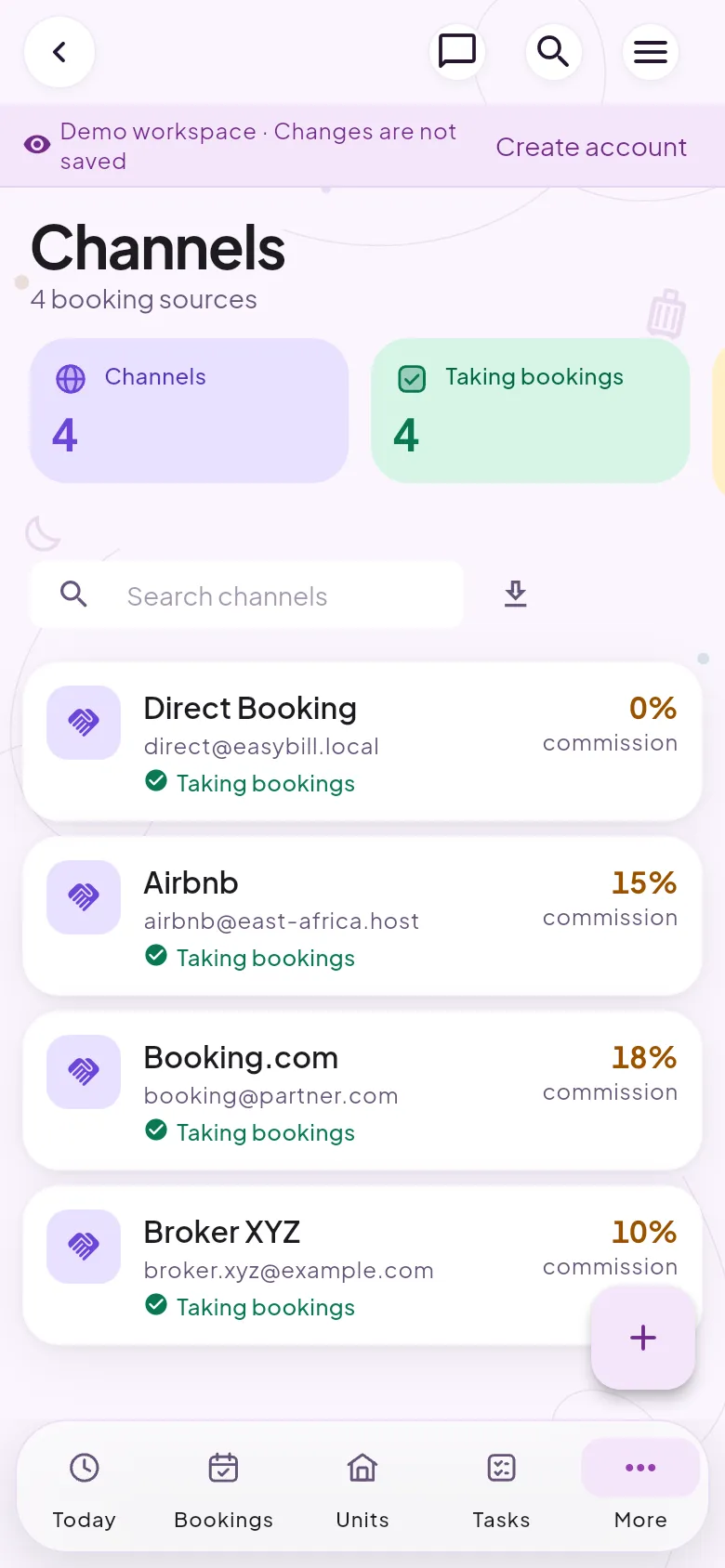
- Read each channel: its contact email, whether it is taking bookings, and its commission rate.
On a phone:
Add or edit a channel
Section titled “Add or edit a channel”- Select Add Channel.
- Enter the channel’s name and contact email.
- Enter the Commission Rate the channel charges. Use 0% for direct bookings.
- Save. To change a channel later, choose Edit Channel.
A channel that is Paused stops taking bookings but stays on record.
Pick the channel on a booking
Section titled “Pick the channel on a booking”Choose the channel when you add a booking, so the stay appears under it in your reports. Booking rows and calendar bars show the channel, so you can see at a glance which stays came from where. See Bookings and calendar.
Read revenue and occupancy
Section titled “Read revenue and occupancy”- Select Analytics in the left menu.
- The top cards show Projected per month, Projected per year, and Projected occupancy. A note under them explains the sum: bookings a month, nights a stay, and the average nightly rate, across your active listings.
- Use the tabs for more: Projection, ROI Forecast, Reports, and P&L.
- In Projection, the Your month dial shows this month’s bookings around the ring, with revenue and the share of nights occupied in the middle. Use the arrows to move between months.
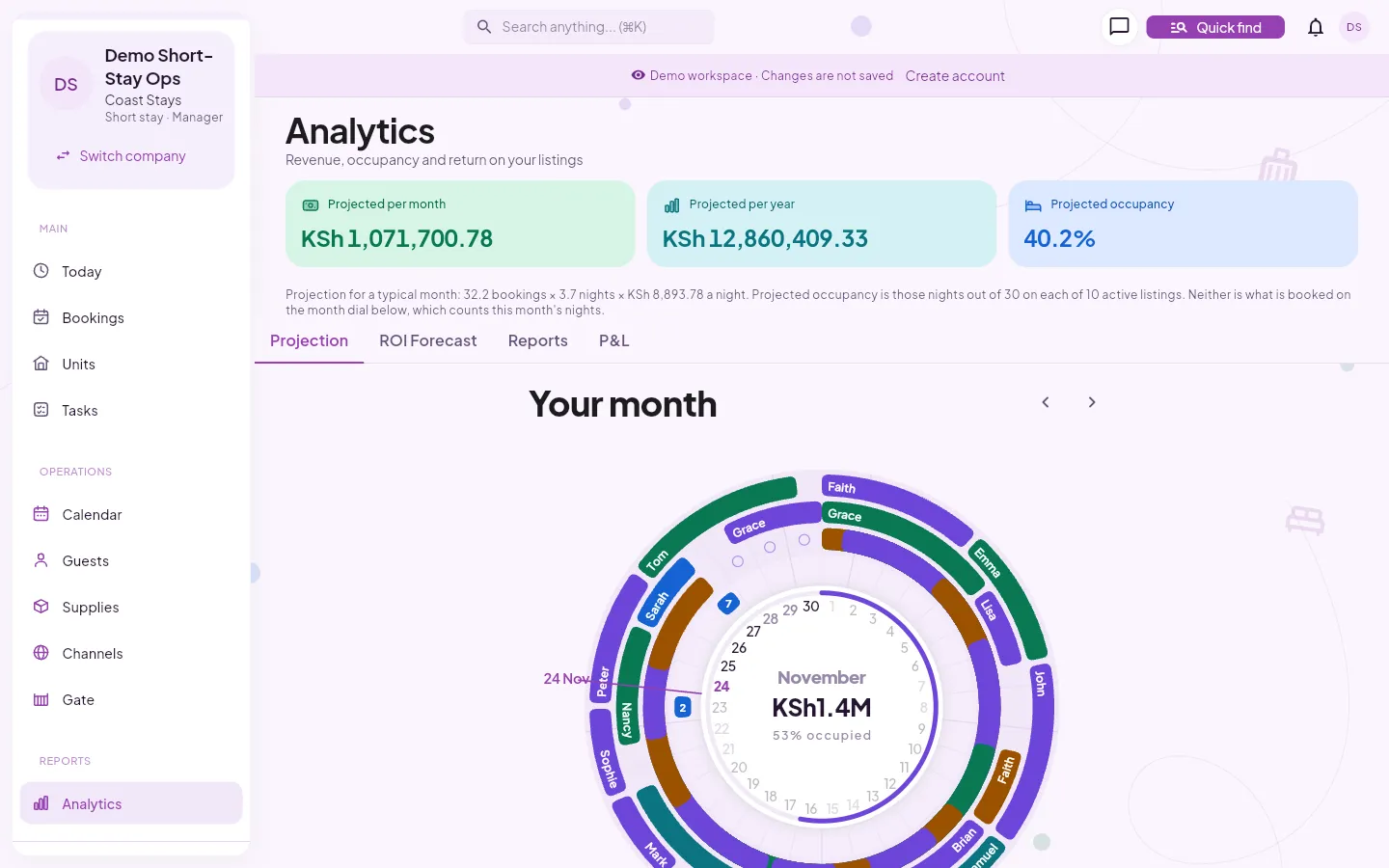
The projection is a forecast for a typical month. It is not the same as what is booked on the month dial.