Maintenance and Expenses
Maintenance in the left menu has two tabs, Work Orders and Service Requests. Assets and expenses have their own screens.
Work orders
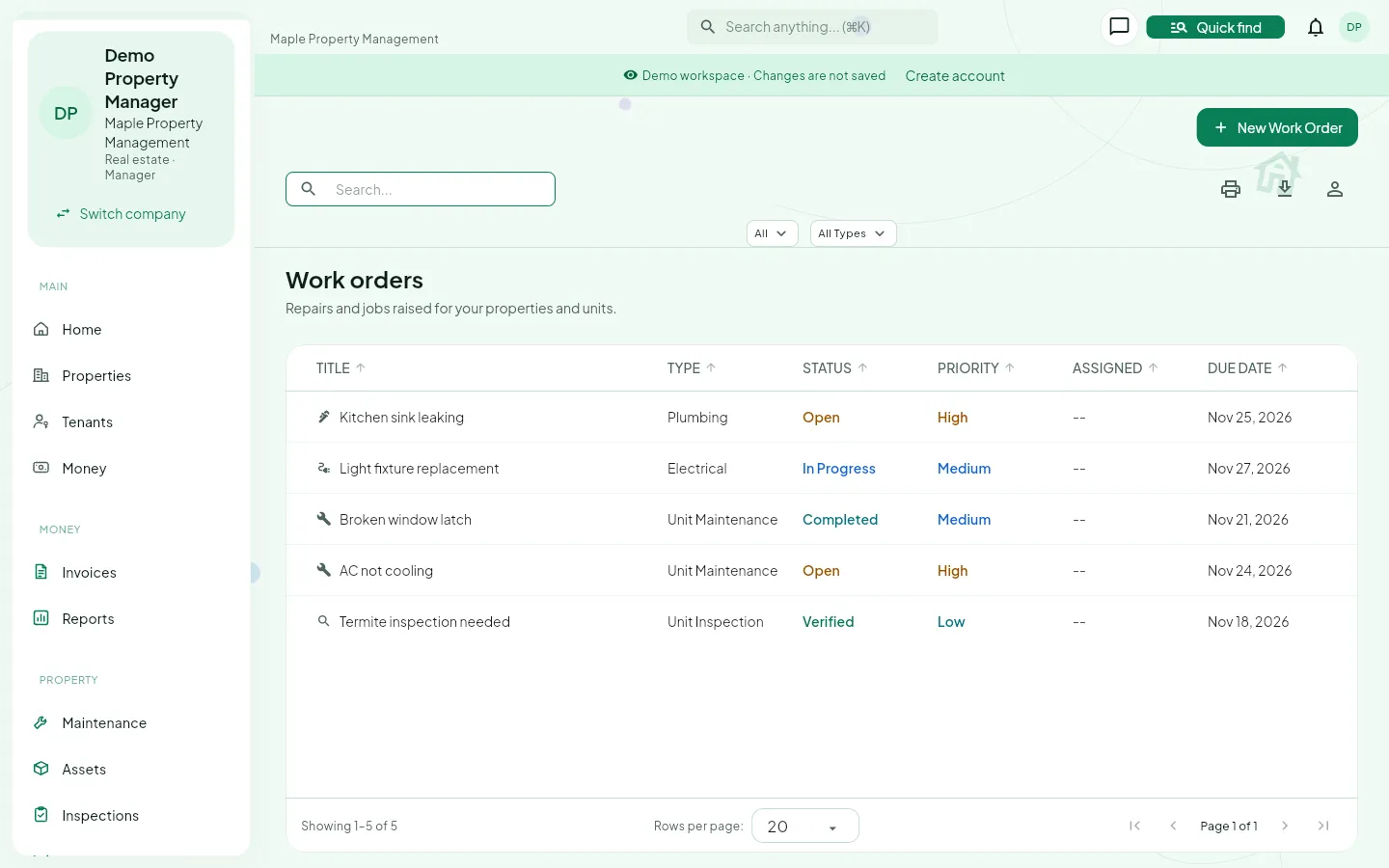
Section titled “Work orders”A work order is a repair or job you raise for a property or unit.
- Open Maintenance and stay on Work Orders.
- Use Show my tasks to see only your own, or Show all tasks. Filter by type, such as Plumbing, Electrical, Cleaning, Painting, Common Area, Security Check, Unit Maintenance, Unit Inspection or General.
- Each row shows Title, Type, Status, Priority, Assigned and Due Date.
- Select New Work Order to raise one. Choose the property or unit, type, priority and due date.
- Open a work order to move it along: Assign it to someone, Start it, Put On Hold and Resume, then Complete. Completion is confirmed with a signature (Complete & Sign). A manager can then Verify it or Reject it with a reason.
Statuses run Open, Assigned, In Progress, On Hold, Completed and Verified. The detail page also records the estimated and actual cost, materials, evidence photos and who created it.
Service requests and complaints
Section titled “Service requests and complaints”Tenant requests land under Service Requests.
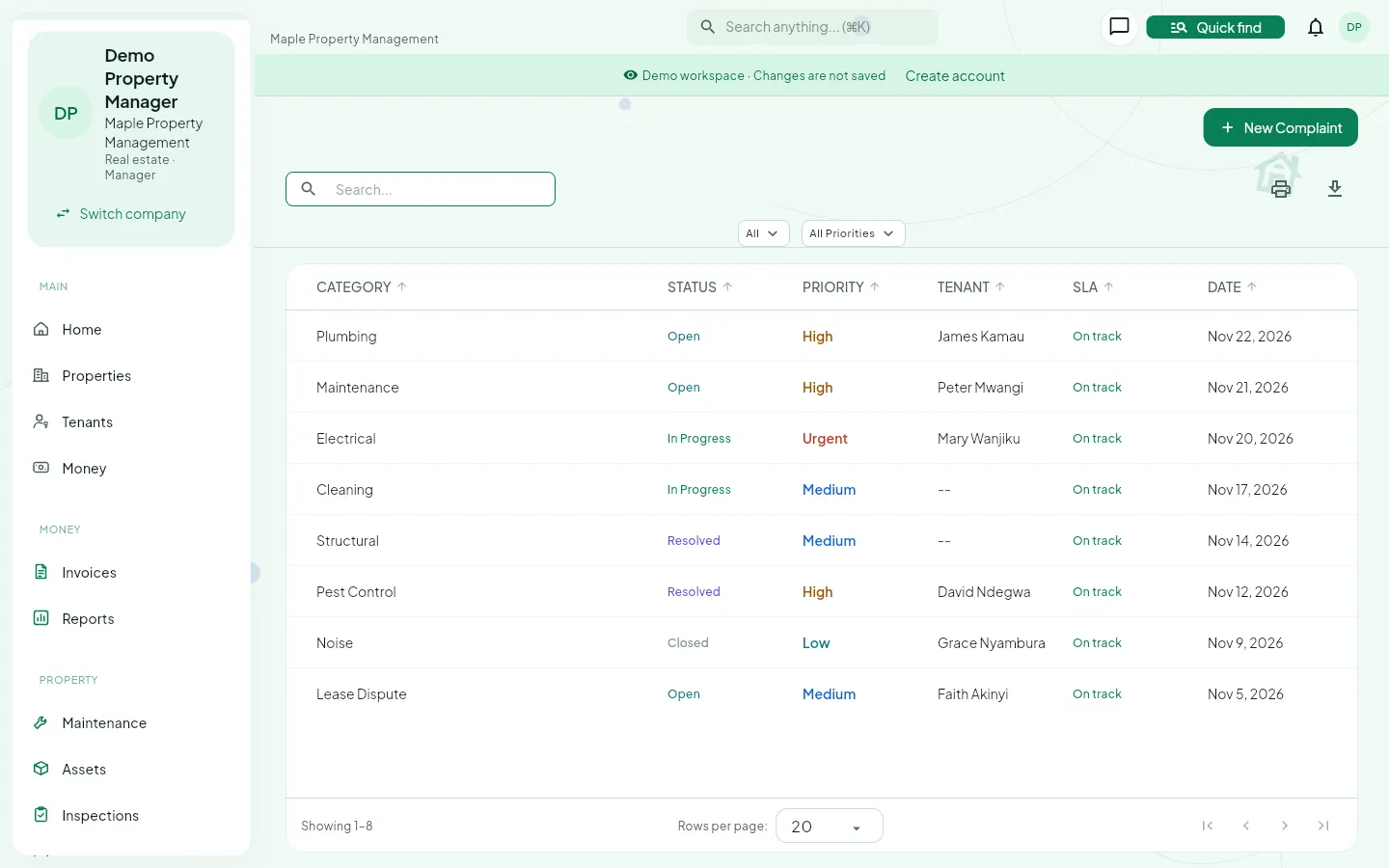
- Open Maintenance and select Service Requests.
- Each row shows Category (for example Plumbing, Noise or Security), Status, Priority, Tenant, SLA and date. The SLA column tells you whether the request is On track or Breached.
- Select New Complaint to log one yourself.
- Open a request to Assign it, then Resolve it with Resolution Notes. Use Reopen if the problem returns. The resolution can also be rated.
Assets
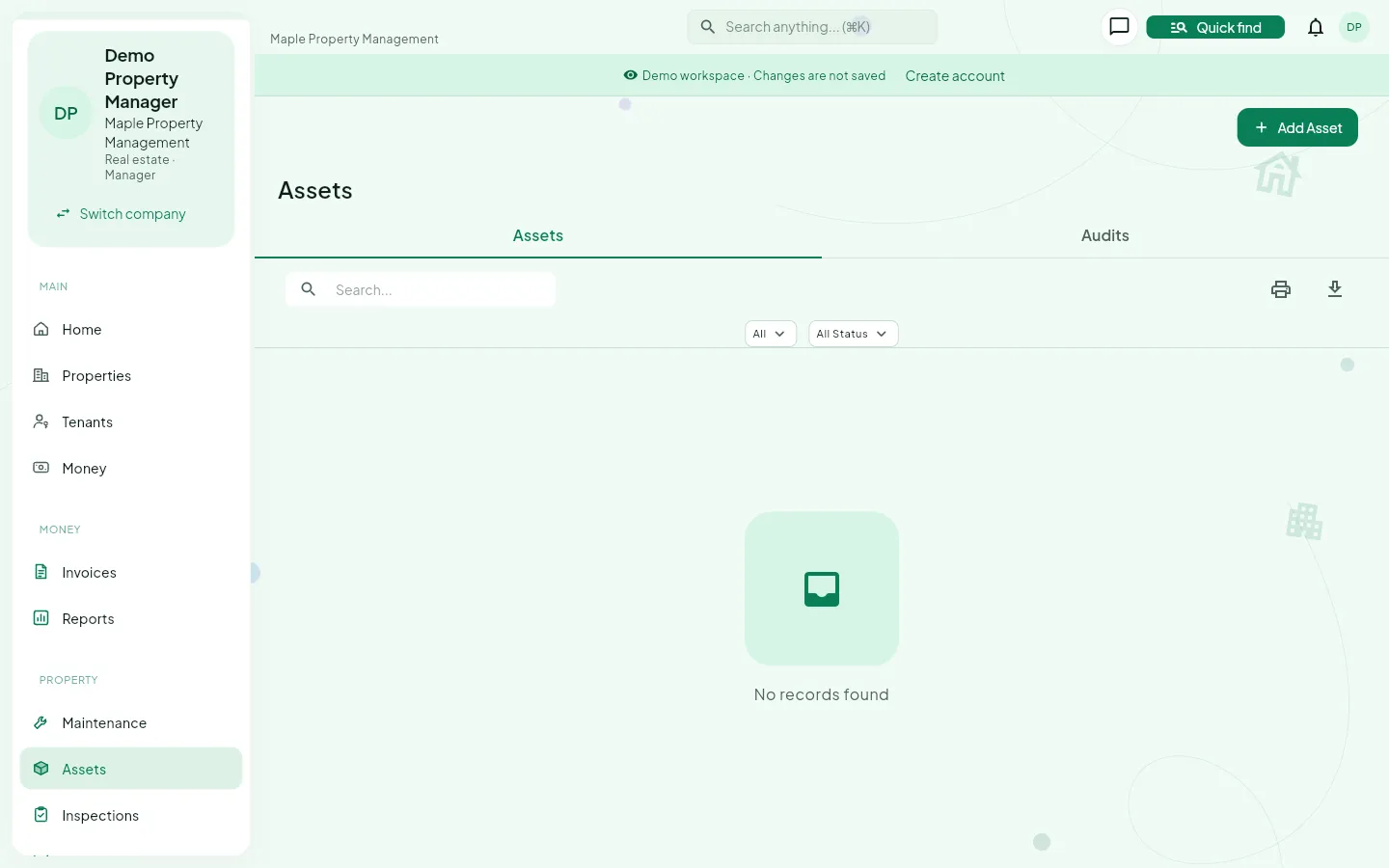
Section titled “Assets”Assets is your register of equipment such as appliances, furniture, generators, tools, vehicles and safety equipment.
- Open Assets in the left menu.
- Select Add Asset and enter the name, category, serial number and condition.
- Filter by status: Active, In Repair, Damaged, Lost or Decommissioned.
- Use the Audits view to check counts and condition.
Expenses
Section titled “Expenses”Record money you spend running a property.
- Open Money and select the Expenses tab (shown if your role has access).
- Select Add Expense.
- Choose the Expense Type, enter the Amount, Expense Date and Description, then save.
- A person with approval rights opens the expense and selects Approve or Reject (with a reason).
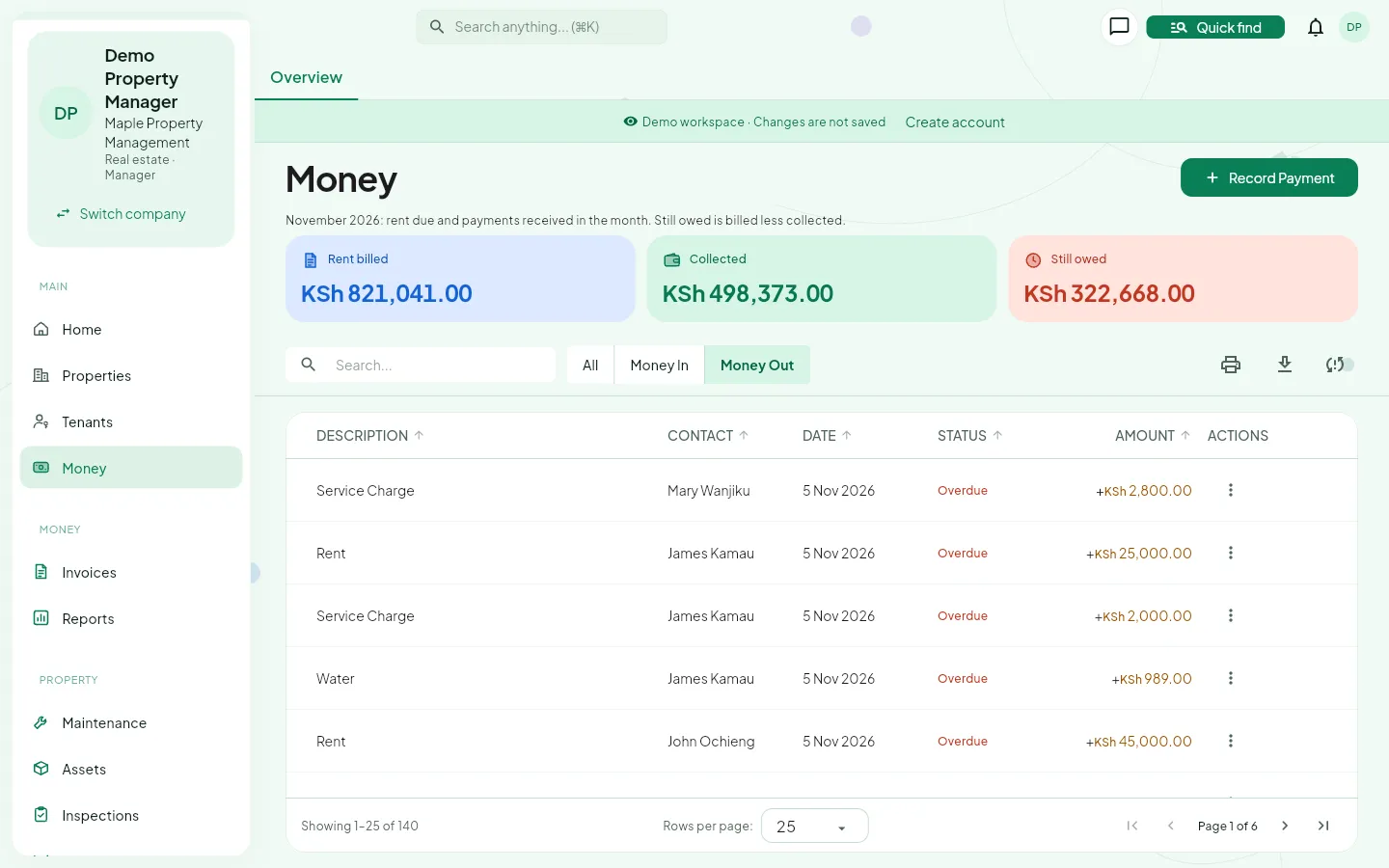
Use the Money Out filter on the Money overview to review outgoing money.