Units and TV Screens
Manage units
Section titled “Manage units”A unit is one bookable room, apartment, or house. Units sit under a property, for example several studios in one building.
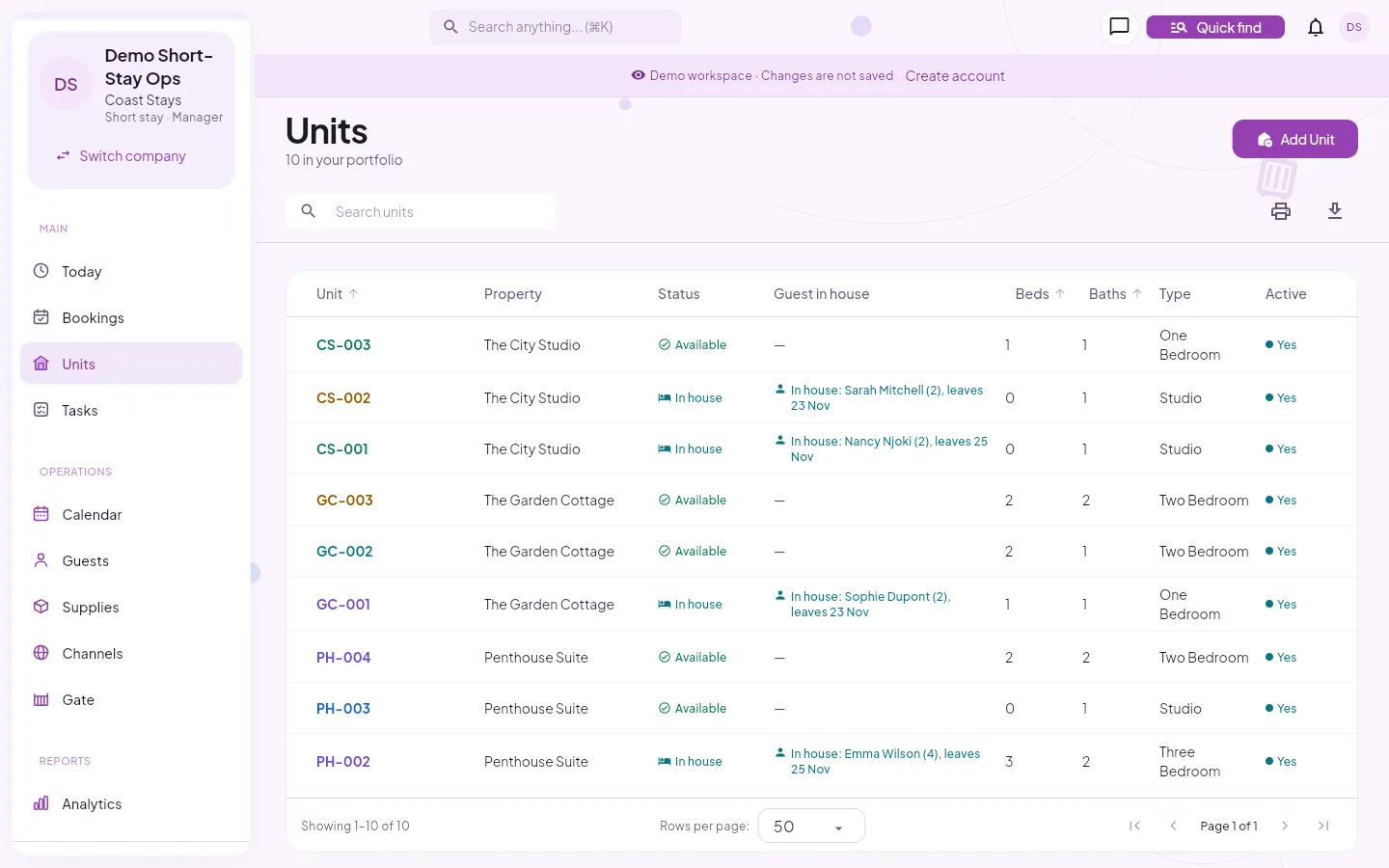
- Select Units in the left menu.
- Read the table: unit, property, status (Available or In house), the guest in house and when they leave, beds, baths, and type.
- Use the search box to find a unit.
- Select Add Unit to add another.
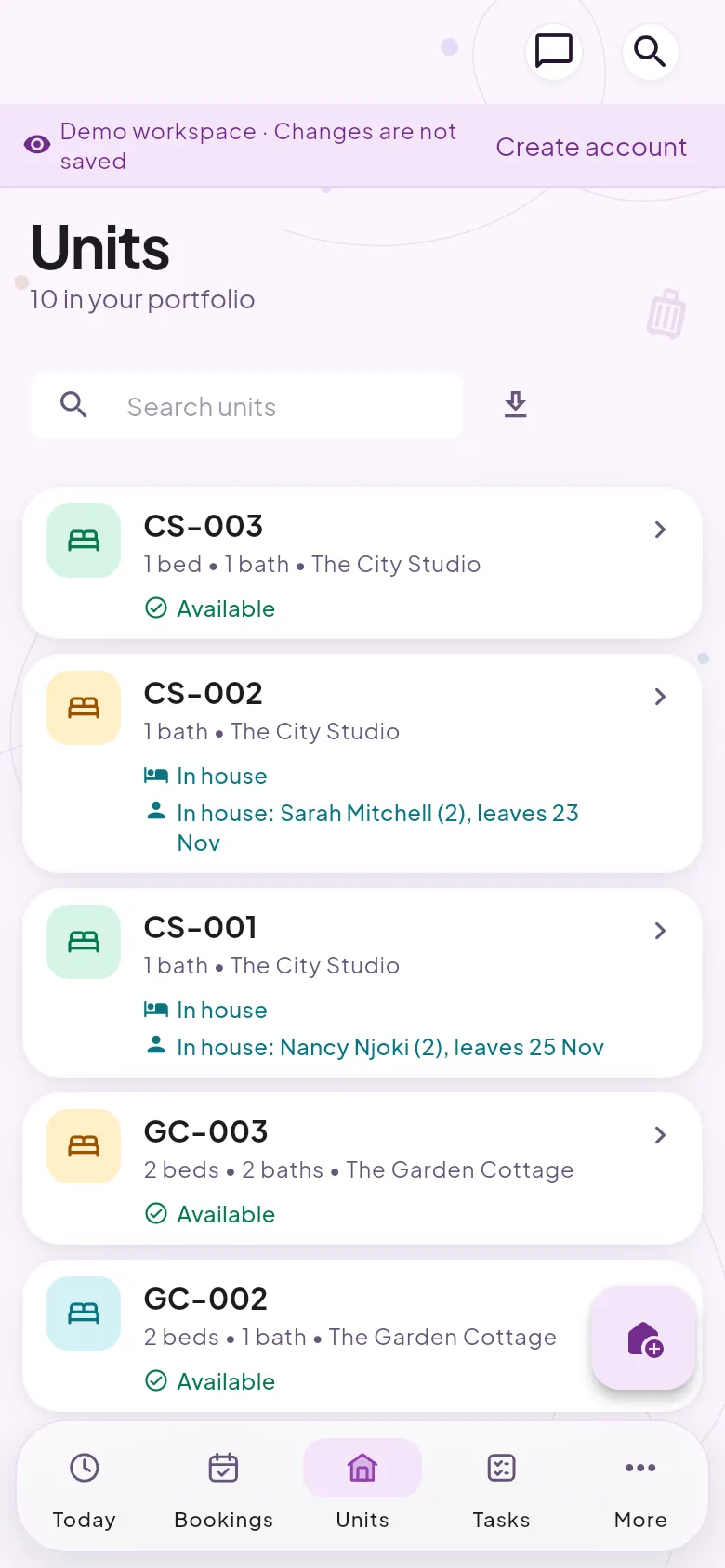
On a phone:
Open a unit
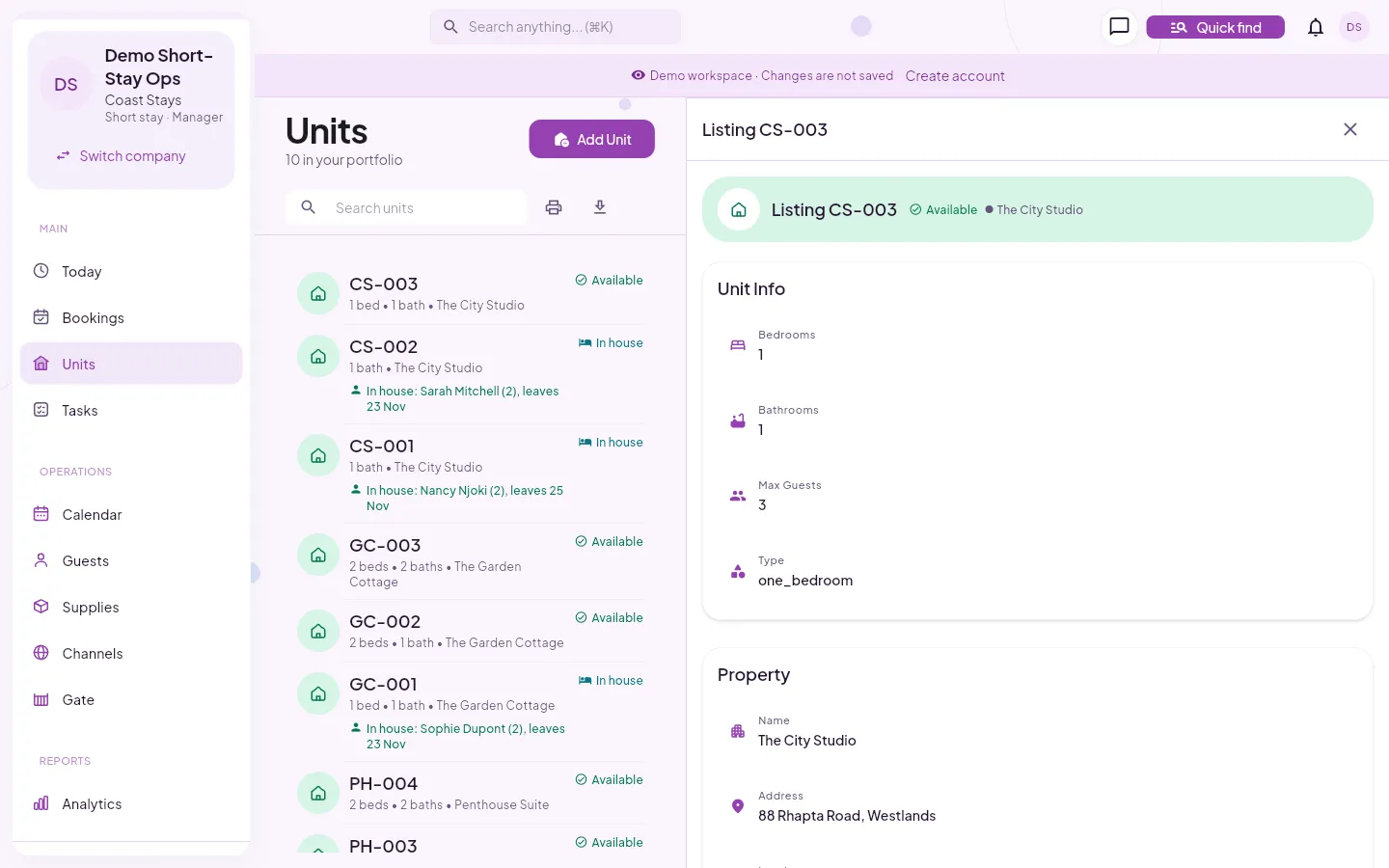
Section titled “Open a unit”Select a unit to see its Unit Info (bedrooms, bathrooms, maximum guests, type), its Property (name, address, level), and a Timeline of when it was created and last updated. From here you can also set the unit’s own check-in and check-out times and its TV and Wi-Fi.
Welcome guests on a TV
Section titled “Welcome guests on a TV”TallyDue TV turns a TV in your unit into a welcome screen that rotates through slides such as Welcome, Wi-Fi, and House guide. The TV only displays what you set in the app, so you change the content here and the TV follows.
Set the defaults for every unit
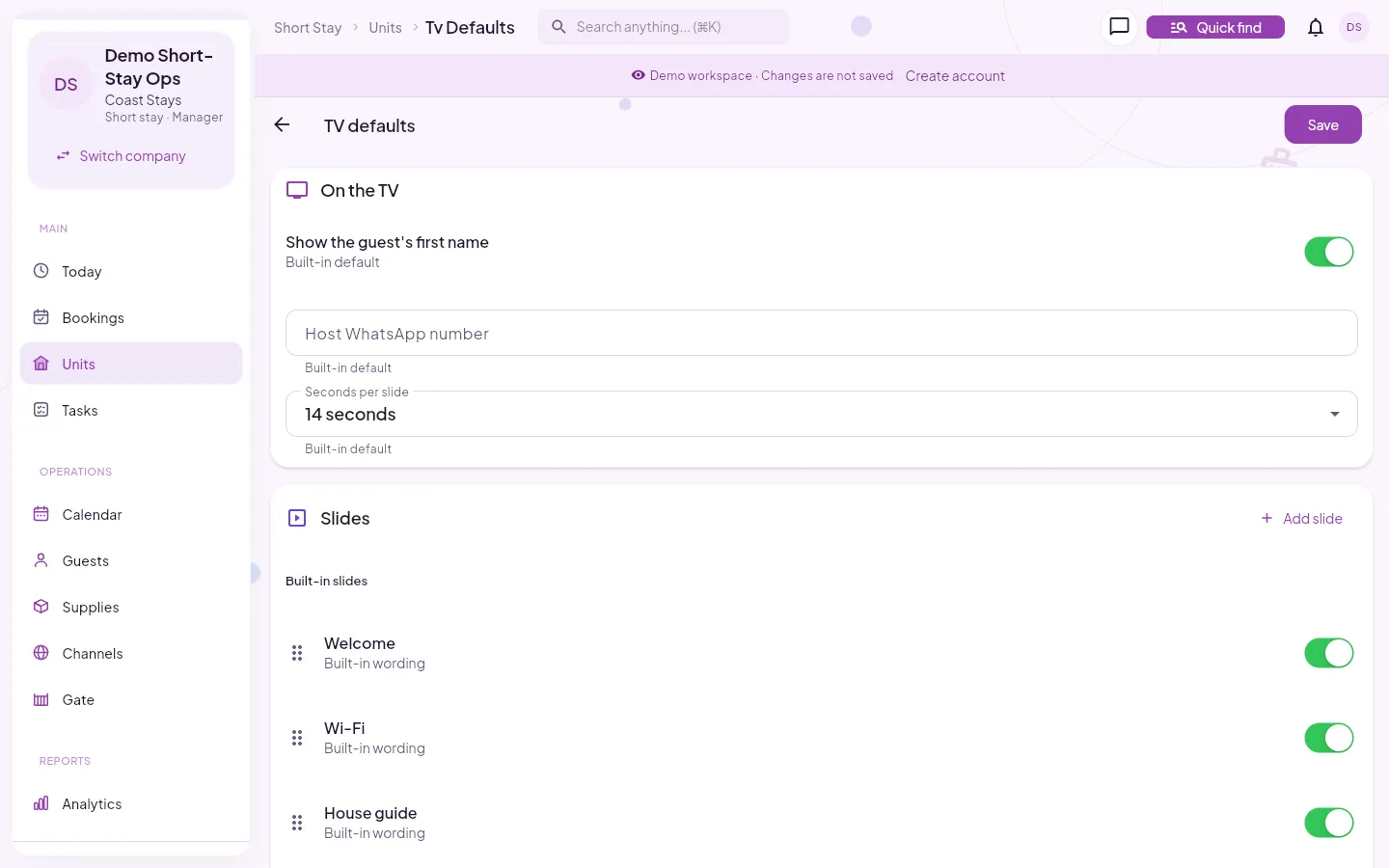
Section titled “Set the defaults for every unit”- Open Units, then TV defaults.
- Under On the TV:
- Turn Show the guest’s first name on or off.
- Enter the Host WhatsApp number with country code, digits only.
- Choose Seconds per slide.
- Under Slides, switch built-in slides on or off and drag them to change the order.
- Select Add slide to write your own, then pick its look.
- Select Save.
Fields show Built-in default until you set your own. Reset to built-in returns a slide to the original wording.
Set Wi-Fi and slides for one unit
Section titled “Set Wi-Fi and slides for one unit”Open the unit’s TV and Wi-Fi page to override the defaults for that unit. Enter the Network name and Password for the guest Wi-Fi. Leave them empty to hide the Wi-Fi slide. Leave the password empty for an open network.
Pair a TV
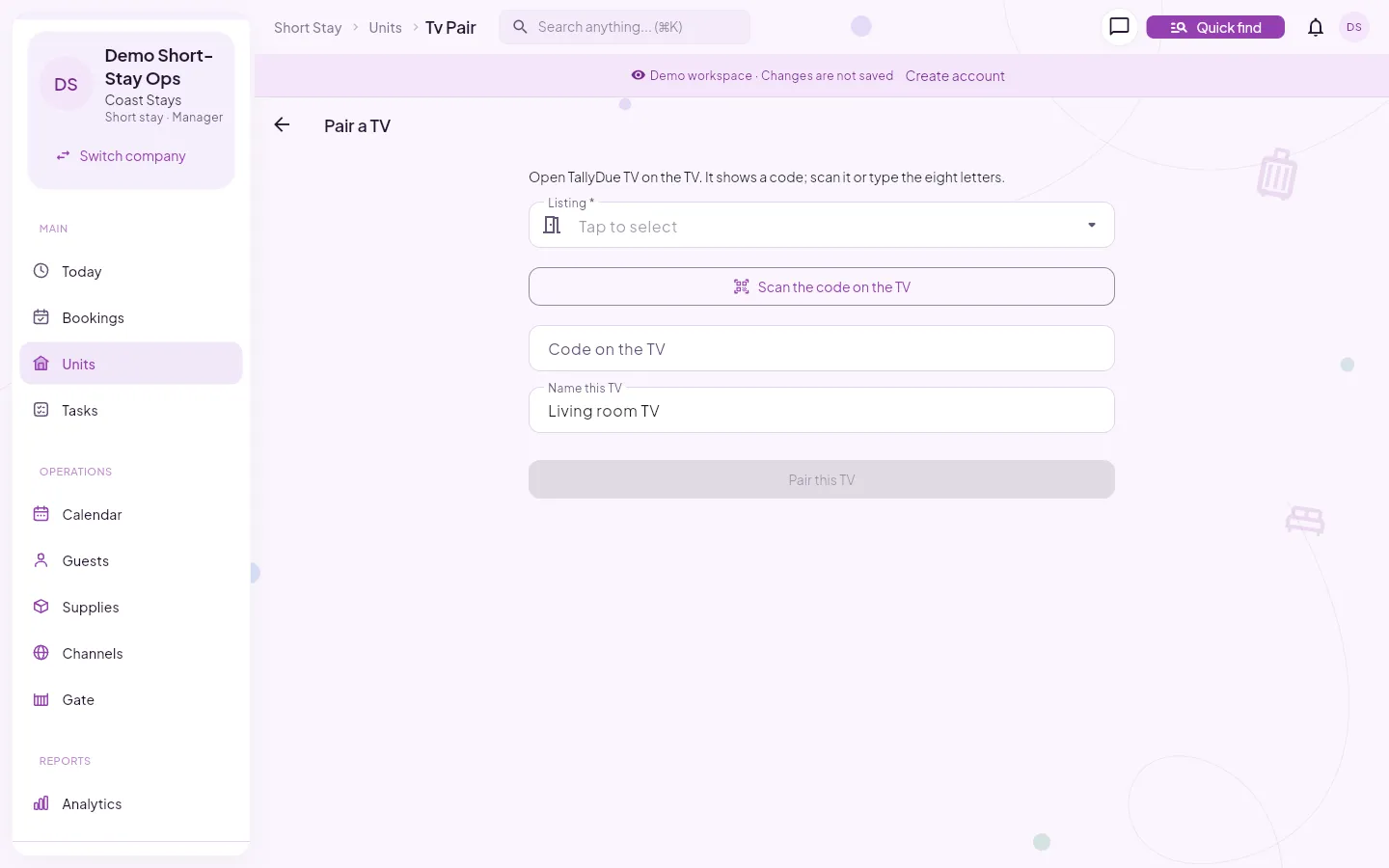
Section titled “Pair a TV”- Install and open TallyDue TV on the TV. It shows an eight-letter code.
- In the app, open Pair a TV.
- Pick the Listing the TV is in.
- Select Scan the code on the TV, or type the code into Code on the TV.
- Give it a name in Name this TV, for example Living room TV.
- Select Pair this TV.
Paired TVs are listed with their status, such as Online, and when they were last seen. Select Unpair to remove one.