Disconnections and Reconnections
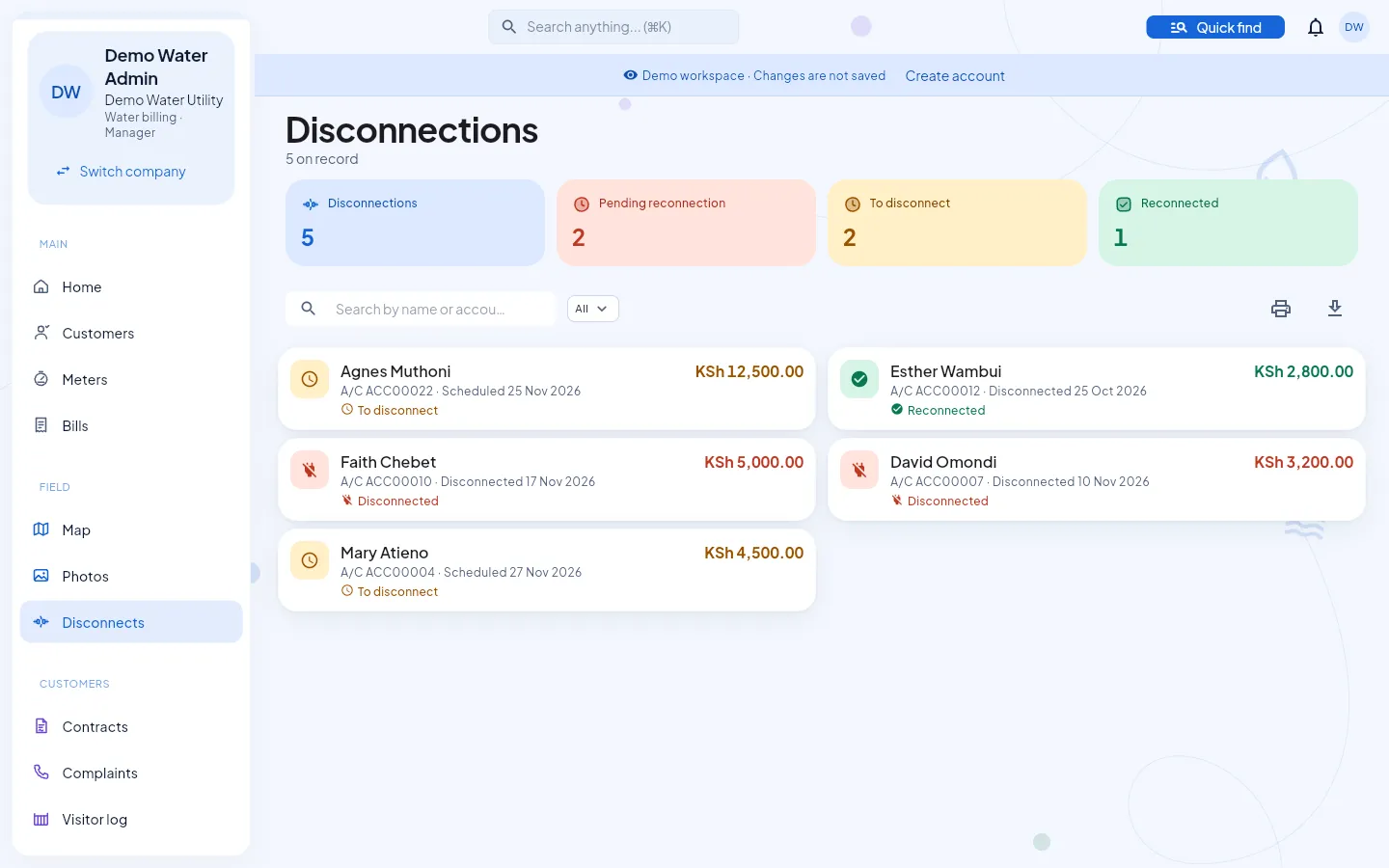
Use Disconnects (under Field in the sidebar) to manage service cut-offs for non-payment. Every account has a status: To disconnect, Disconnected, or Reconnected.
Review the list
Section titled “Review the list”- Open Disconnects.
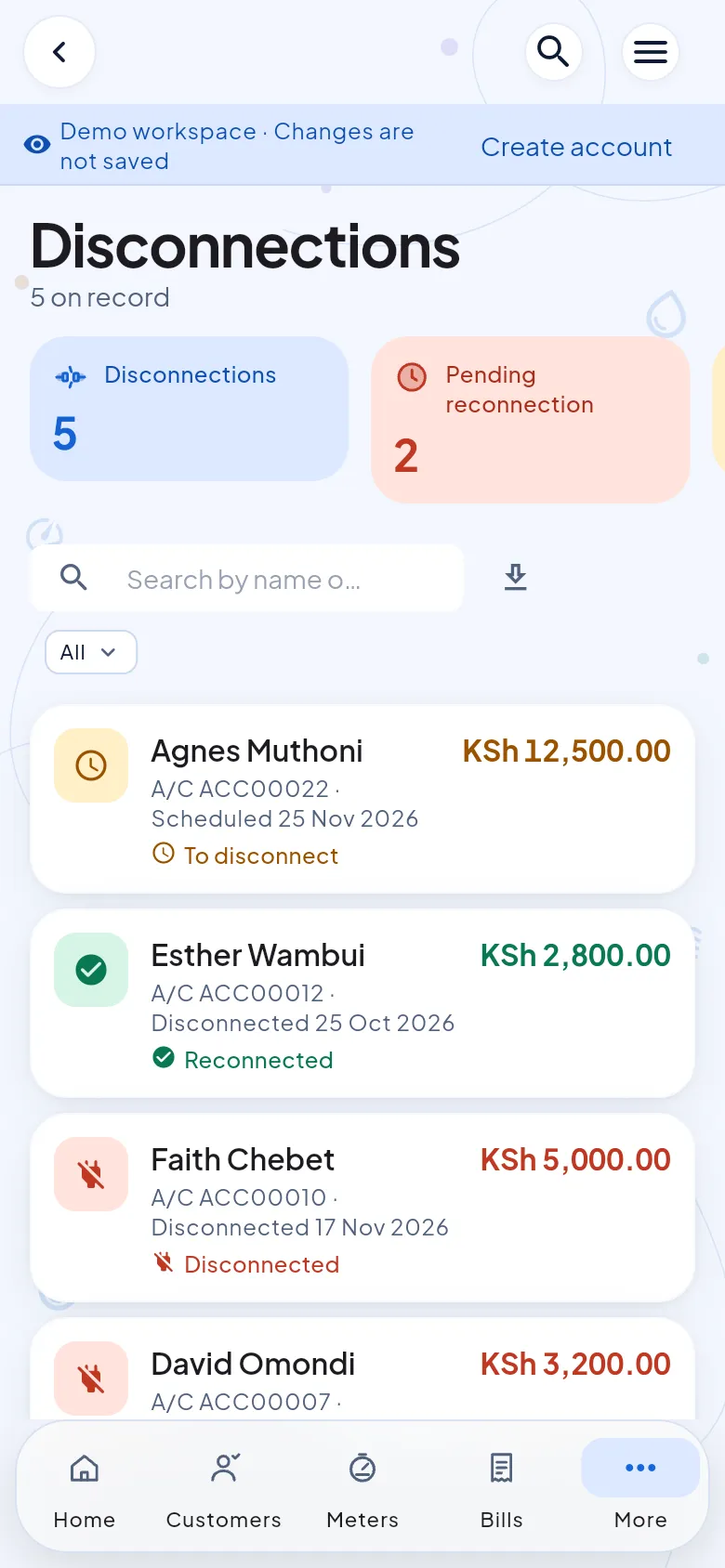
- The cards count Disconnections, Pending reconnection, To disconnect, and Reconnected.
- Each row shows the customer, account number, the date, the status, and the amount owed. Accounts waiting to be cut off show a scheduled date.
- Search by name or account number. Open the filter to show one status only.
- Use Print or Download to give the field team a list.
The Home screen also shows To disconnect and awaiting reconnection counts under Needs you, so you see them without opening this page.
Disconnect a meter
Section titled “Disconnect a meter”- Open the customer and select the Disconnections tab.
- Select Disconnect Meter.
- Check the Disconnection Date.
- Confirm the Disconnection Fee. The app suggests a fee and you can change it.
- Keep the Reason, which starts as Non Payment, or write another.
- Select Disconnect.
The meter is marked Disconnected and the fee is saved with the disconnection record. You can also create a work order of type Disconnection or Reconnection so the field team knows where to go. See Complaints and work orders.
Reconnect a meter
Section titled “Reconnect a meter”- Collect the payment first and record it.
- Open the customer and the Disconnections tab.
- Select Reconnect Meter.
- Enter the Reconnection Date, Reconnected By (the name of the person who restored service), and an optional Reason.
- Select Reconnect.
The status changes to Reconnected, and the history keeps the disconnection date, fee, reason, and who reconnected it.
See disconnected meters on the map
Section titled “See disconnected meters on the map”Disconnected installations show in a different colour on the field map.