Complaints, Work Orders, Assets, and Visitor Log
These four screens help your team respond when something goes wrong in the network. They are in the sidebar: Complaints and Visitor log under Customers, and Work orders and Assets under Upkeep.
Log a complaint
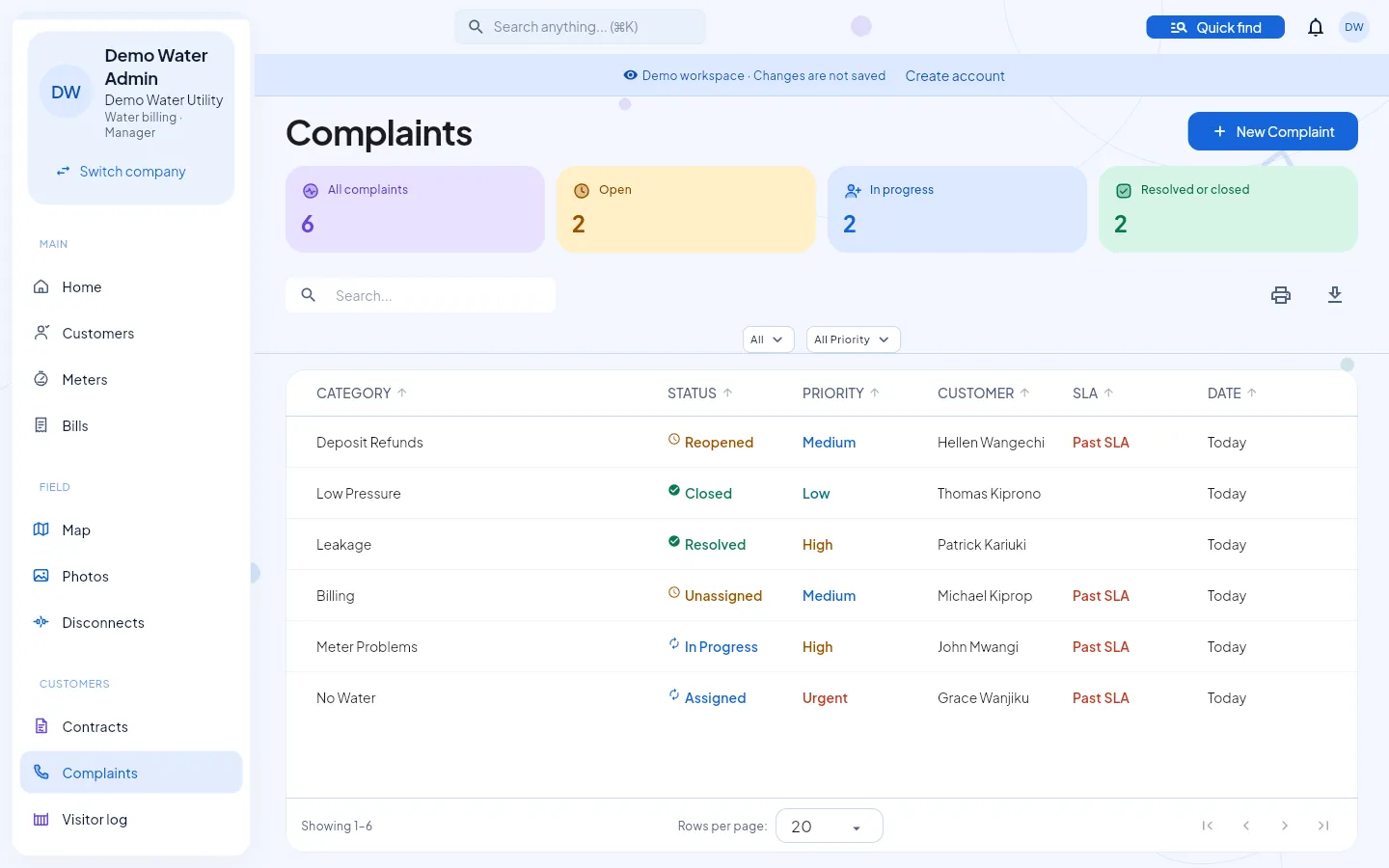
Section titled “Log a complaint”- Open Complaints. The cards count All complaints, Open, In progress, and Resolved or closed.
- Select New Complaint.
- Choose the Category, for example Leakage, Low Pressure, No Water, Meter Problems, Billing, Bill Delivery, Water Quality, Major Burst, or Deposit Refunds.
- Under Tell us more, add evidence photos, describe the problem, and set the Priority. Select the account or meter when the complaint is about one customer.
- Select Submit Complaint.
Work a complaint
Section titled “Work a complaint”- Open the complaint.
- Select Assign and choose the staff member responsible. The status becomes Assigned, then In Progress as work starts.
- When it is fixed, select Resolve and write the Resolution Notes.
- Select Close once the customer is satisfied, or Reopen if the problem returns.
The SLA column warns you with Past SLA when a complaint has waited longer than its target, so you can chase it.
Create and track work orders
Section titled “Create and track work orders”A work order is a job for your field team, such as repairing a pipe, fixing a meter, or reconnecting a customer.
- Open Work orders. The cards count Open, Assigned or in progress, On hold or rejected, and Completed or verified.
- Select New Work Order.
- Choose the type, for example Meter Repair, Meter Install, Meter Replace, Pipe Repair, Inspection, Disconnection, Reconnection, or General, and set the priority.
- Add a title, photos, a description, a Due Date, and an estimated cost.
- Optionally assign a staff member now, or skip and assign later.
- Select Create Work Order.
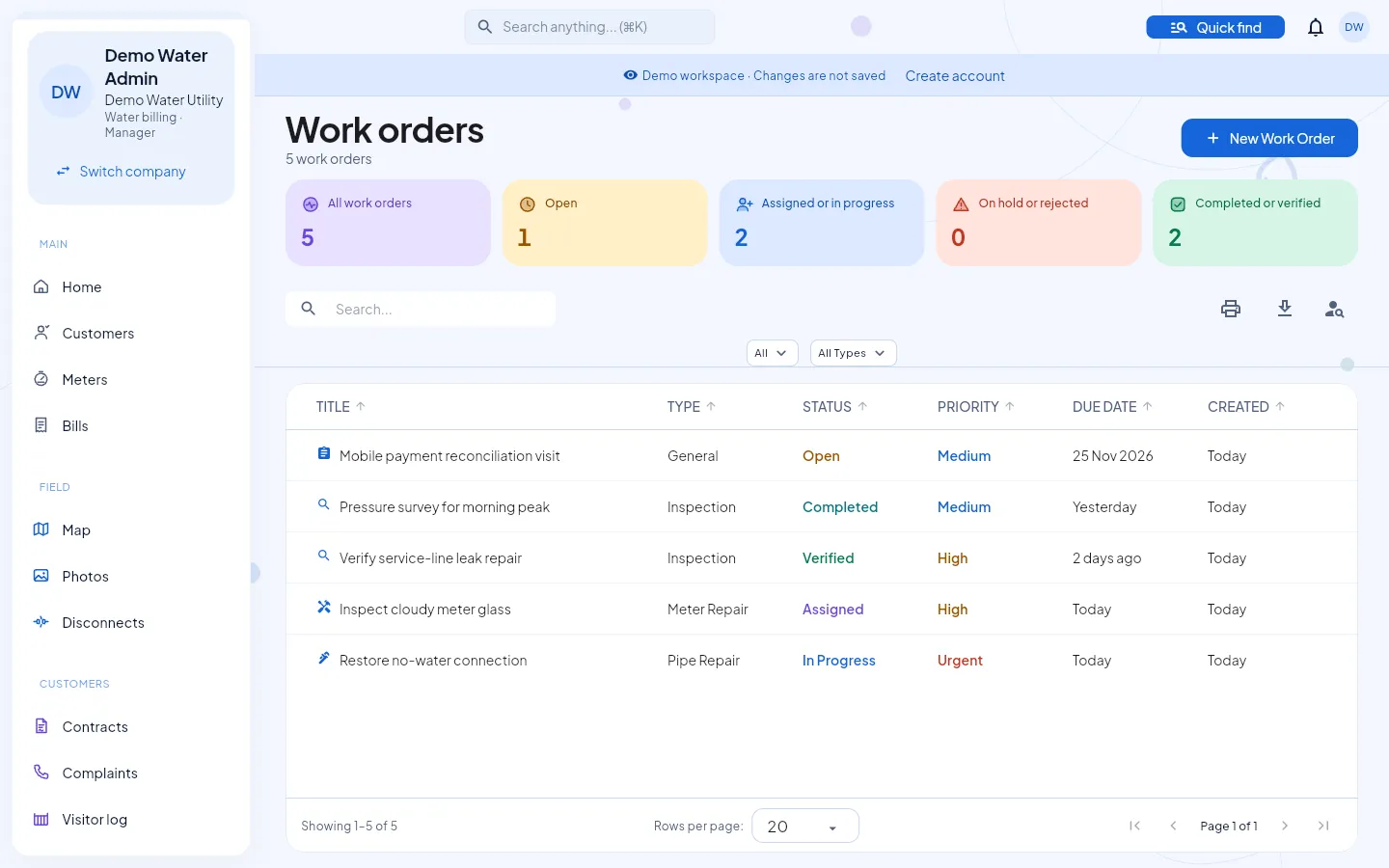
To move a job along, open it and use the buttons shown for its status: Assign, Start, Hold (with a reason), Resume, and Complete. A completing staff member signs on screen (Complete & Sign). A manager then chooses Verify, or Reject with a reason. Turn on Show my tasks to see only the jobs assigned to you.
Keep track of assets
Section titled “Keep track of assets”Assets lists the tools, meters, pumps, pipes, and consumables your utility owns.
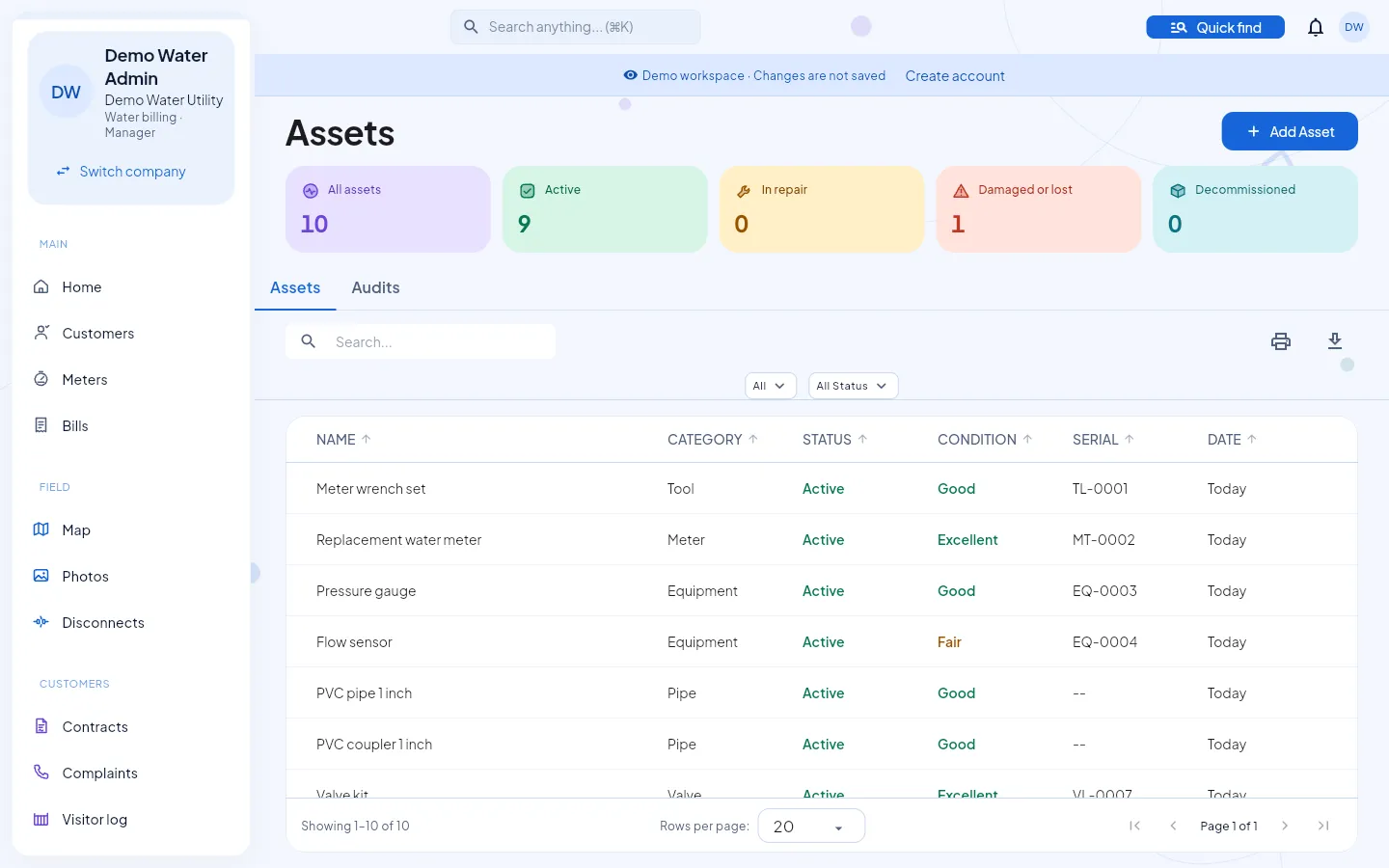
- Open Assets. The cards count Active, In repair, and Damaged or lost assets.
- Select Add Asset.
- Choose the category, attach a photo, and fill in the details shown for that category, such as the serial number, condition, and purchase price.
- Select Create Asset.
- Use the Audits tab to record stock-takes.
Record visitors
Section titled “Record visitors”Use Visitor log at your office or depot gate.
- Open Visitor log. It lists who is Inside now.
- Select Check In and enter the visitor’s name, phone number, and ID or passport number.
- Choose the Purpose Category, such as Payment, Complaint, New Connection, Delivery, or Contractor, and add the host or account reference.
- Confirm. Turn on Notify host via SMS if you want the person they are visiting to be told.
- When they leave, select Check out beside their name.
Open History to review past visits.