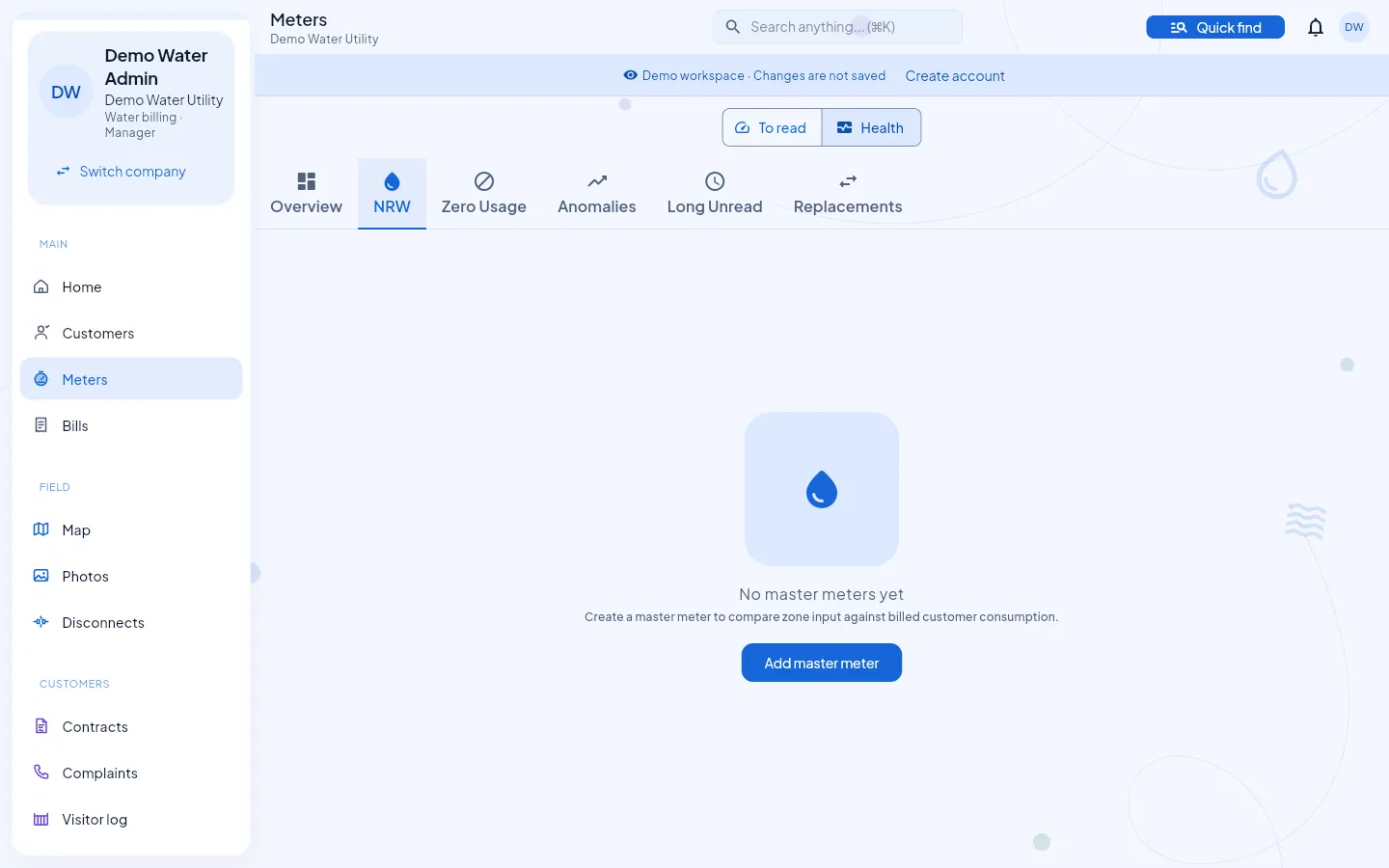
Meter Health and Master Meters
Meter health shows which meters need attention before you bill. Open Meters and select Health next to To read.
Read the Overview
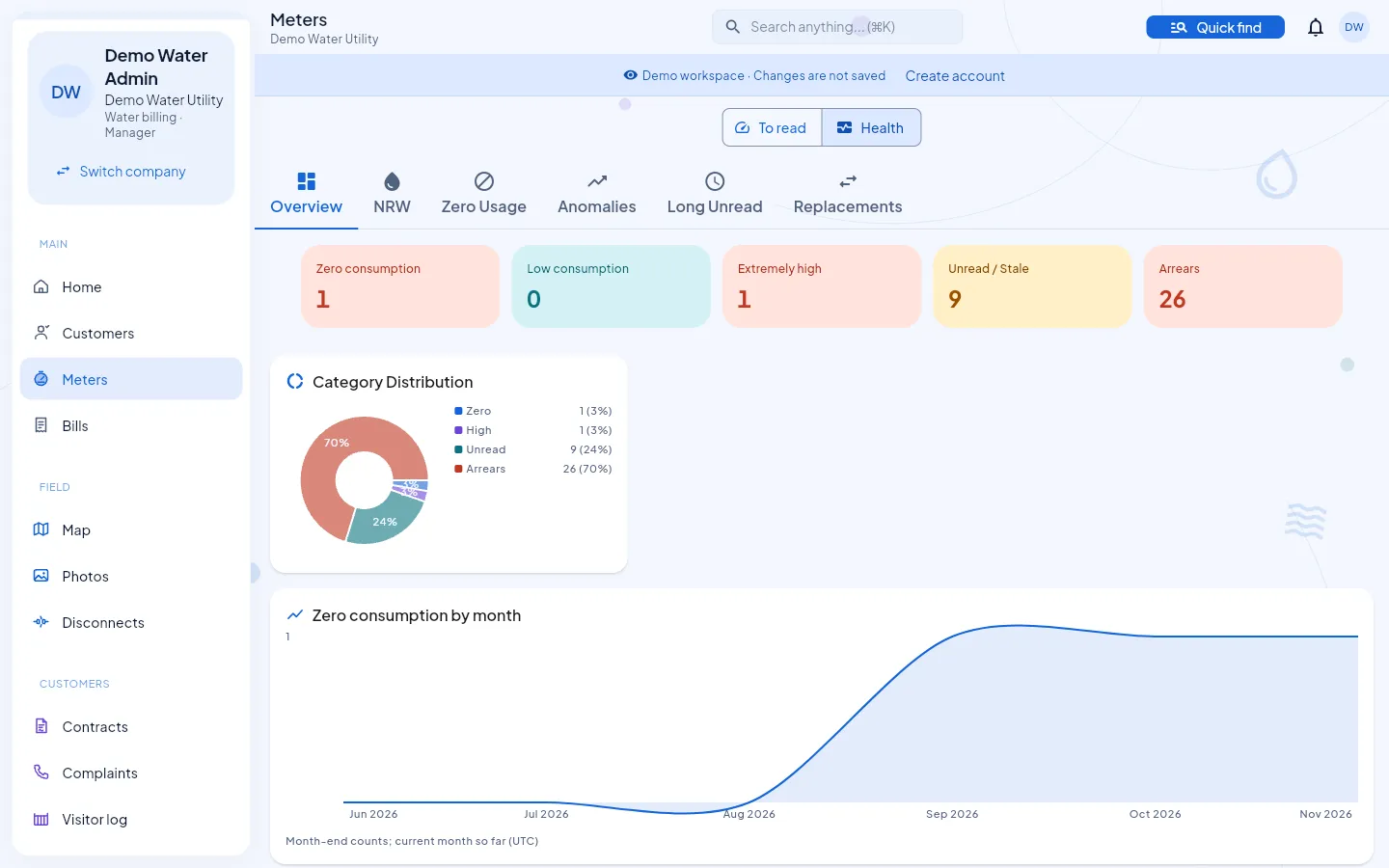
Section titled “Read the Overview”The Overview tab counts meters that fall into each problem group:
- Zero consumption: the meter was read but no water was used.
- Low consumption: usage far below the meter’s normal level.
- Extremely high: usage far above the meter’s normal level.
- Unread / Stale: no reading for 31 days or more.
- Arrears: accounts that owe money.
Below the counts, Category Distribution shows each group as a share of your meters, Zero consumption by month shows the trend, and a list of Top Risk Meters shows the meters to look at first, with the number of days since each was read.
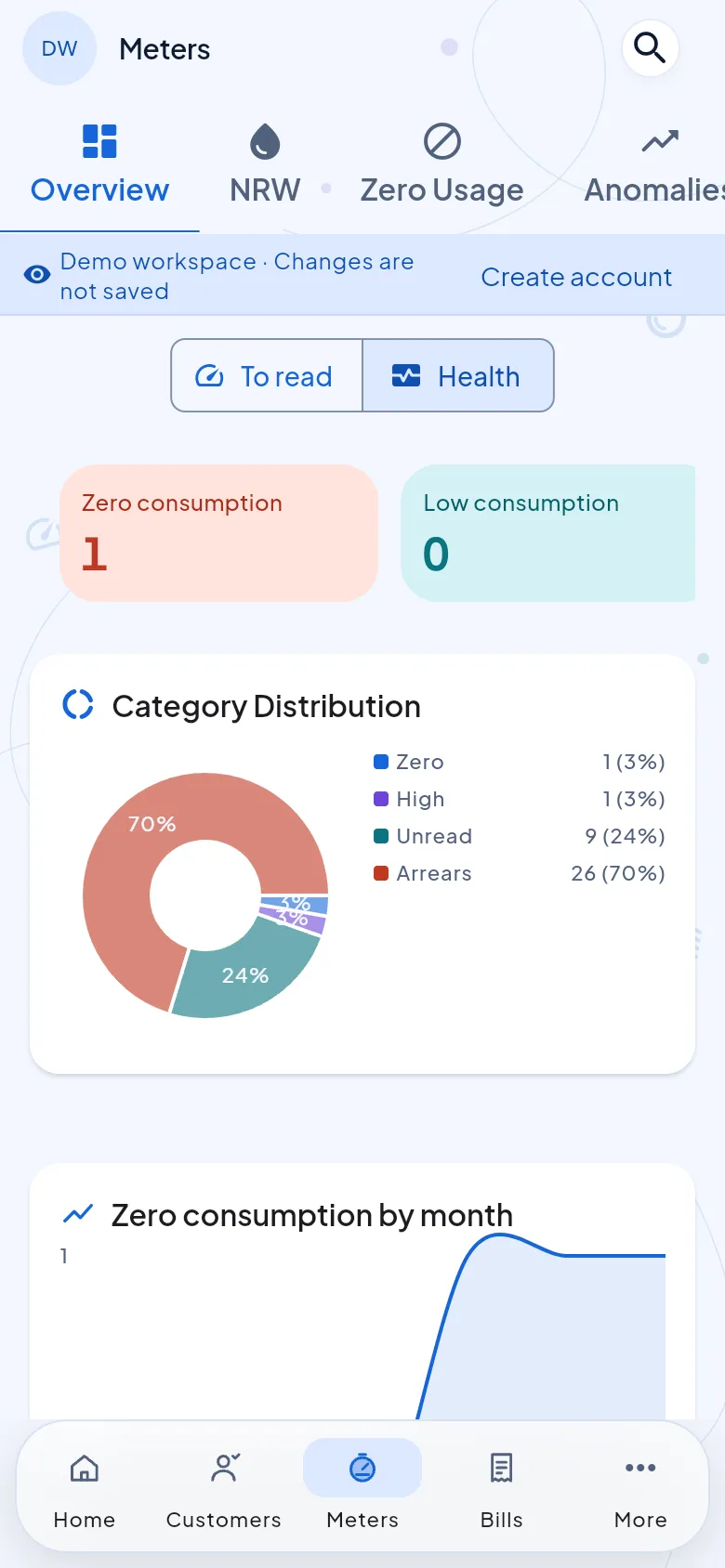
On a phone the same information is stacked in one column.
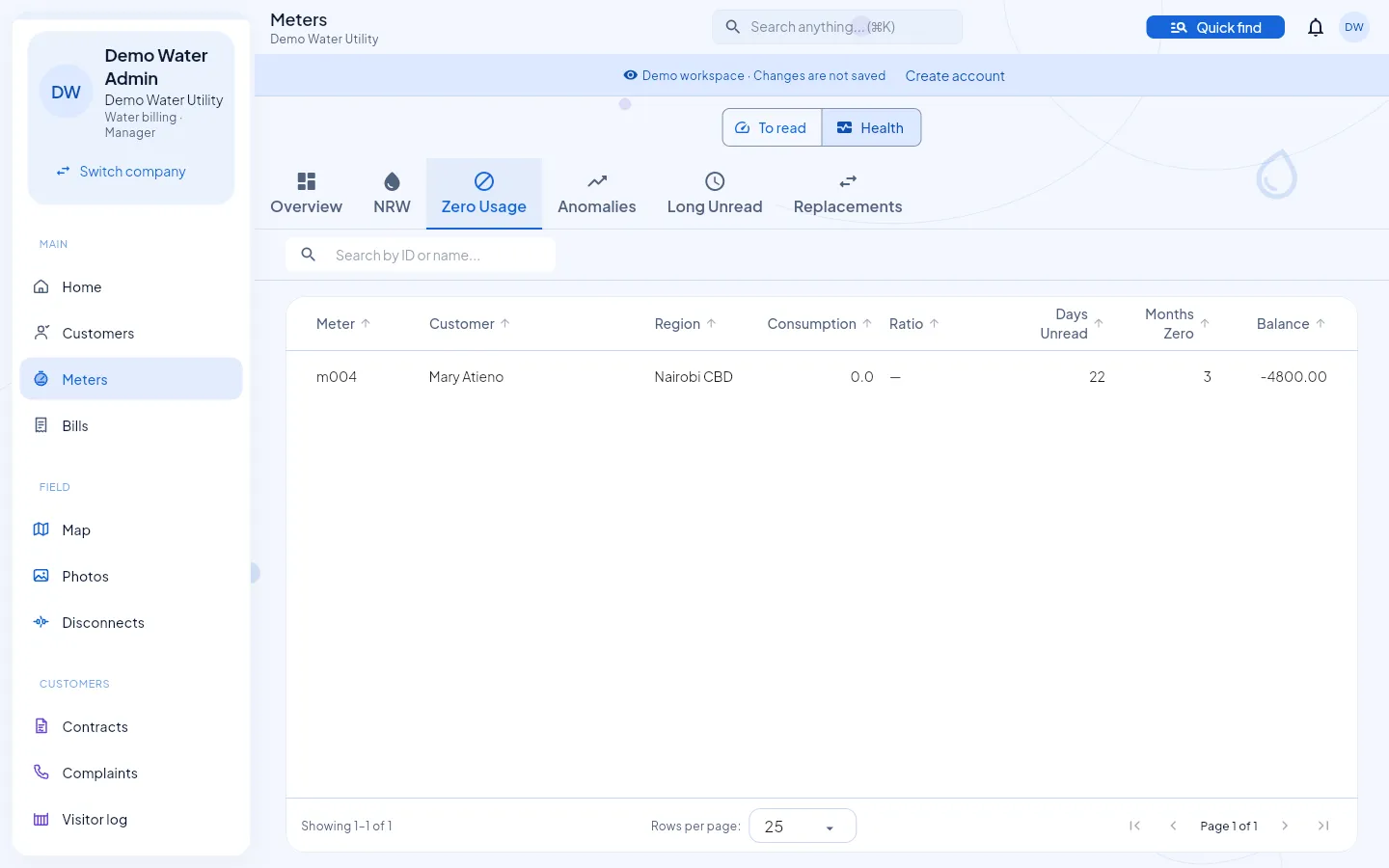
Zero Usage
Section titled “Zero Usage”Lists meters whose latest readings show no consumption, with the number of Months Zero. A meter that stays at zero may be stuck, bypassed, or on an empty property. Visit it, take a photo, and decide whether to replace the meter.
Anomalies
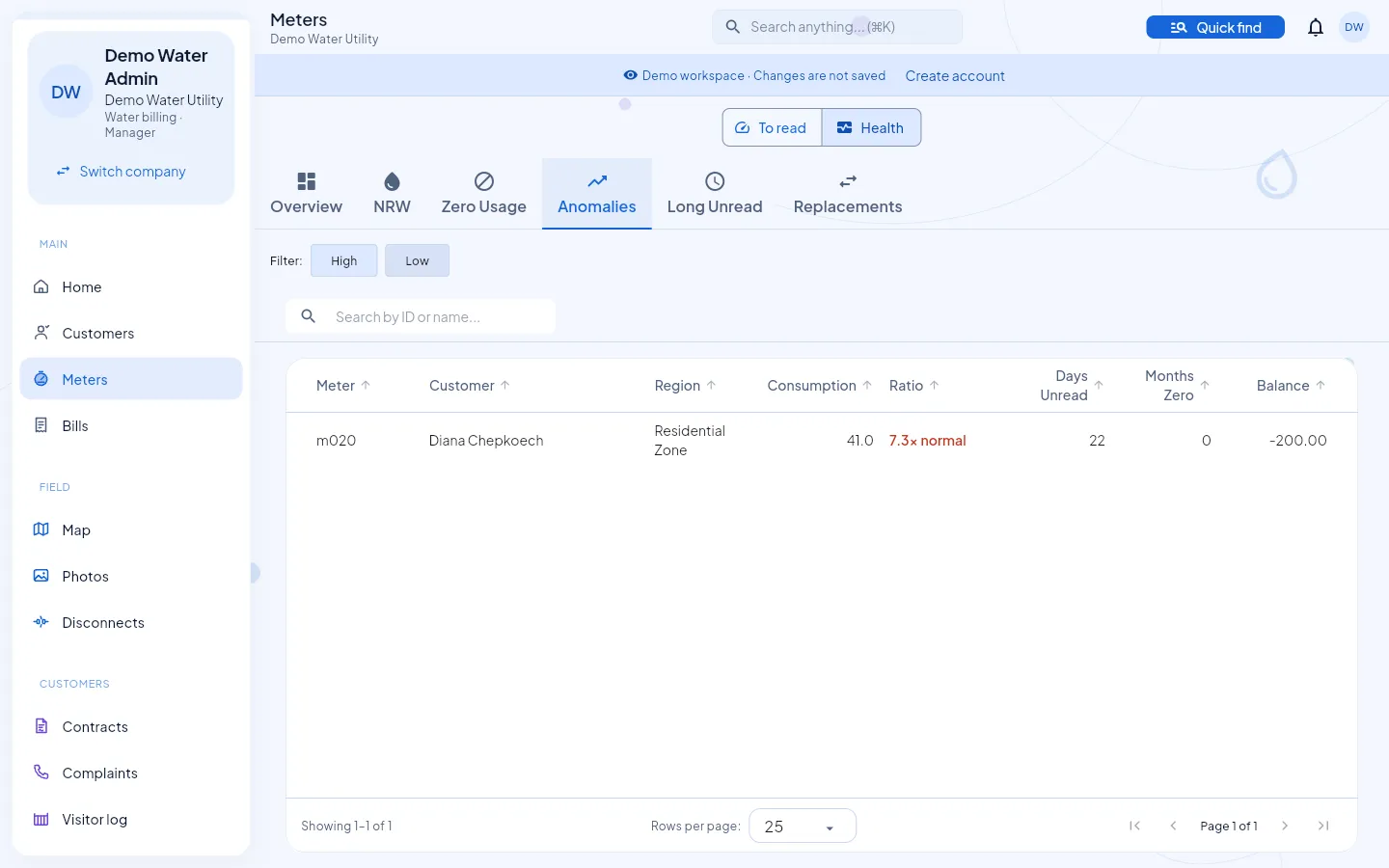
Section titled “Anomalies”Lists meters whose use is far from their usual pattern. TallyDue compares the latest consumption with the meter’s typical monthly use: more than three times higher, or less than a third, is flagged. The Ratio column shows how many times normal it was, for example 7.3x. Check for a leak, a wrong reading, or a changed household before the bill goes out.
Long Unread
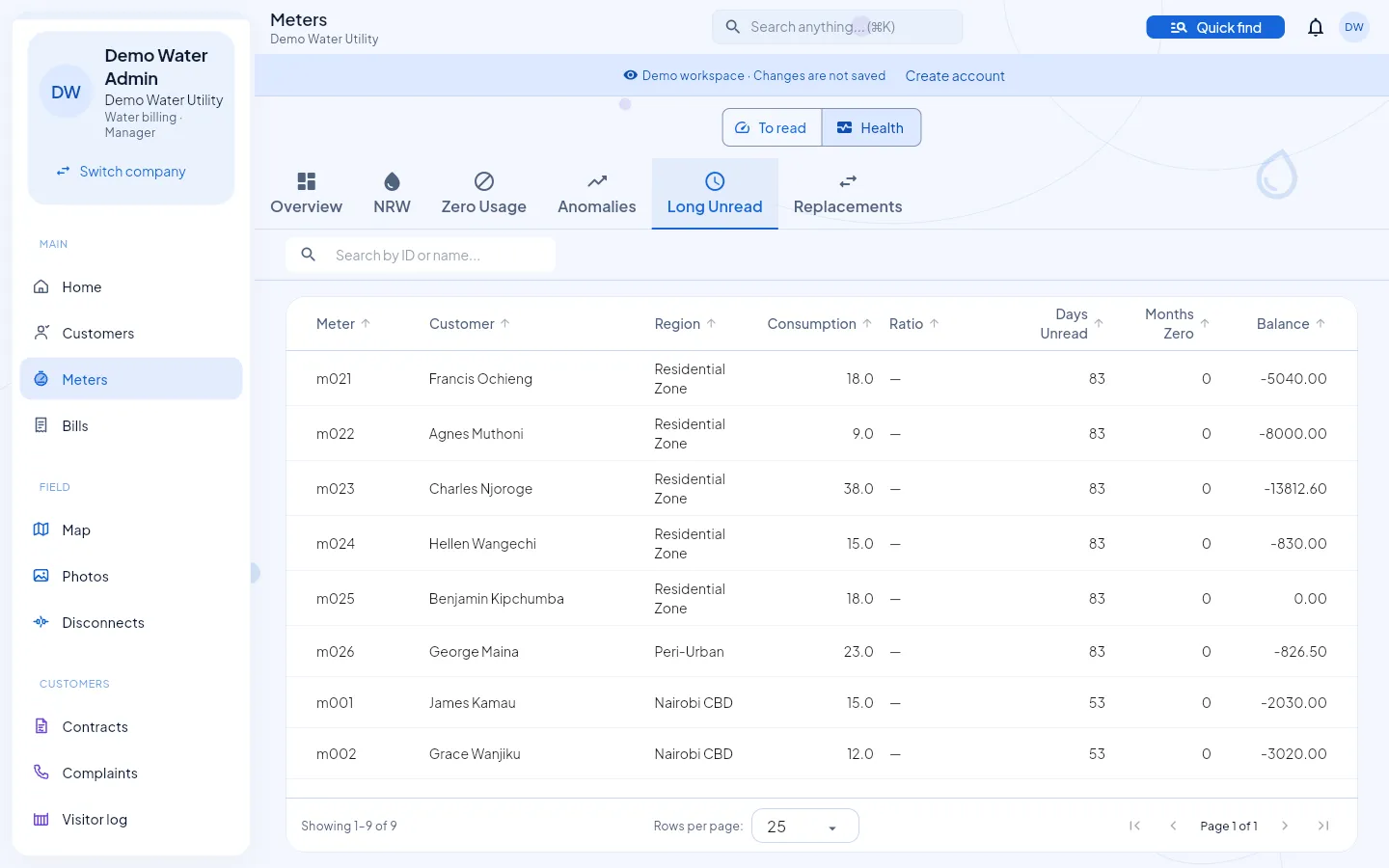
Section titled “Long Unread”Lists meters with no reading in 31 days or more, with Days Unread and Balance. Send a reader, or mark the meter faulty or inaccessible so it moves to Needs a visit.
Replacements
Section titled “Replacements”Shows every meter swap: the old meter, the new meter, the date, and the reason. To replace a meter, see Customers and meters.
NRW and master meters
Section titled “NRW and master meters”Non-revenue water (NRW) is water you put into the network that you never bill. To measure it, put a master meter on each zone’s supply and attach the customer meters in that zone.
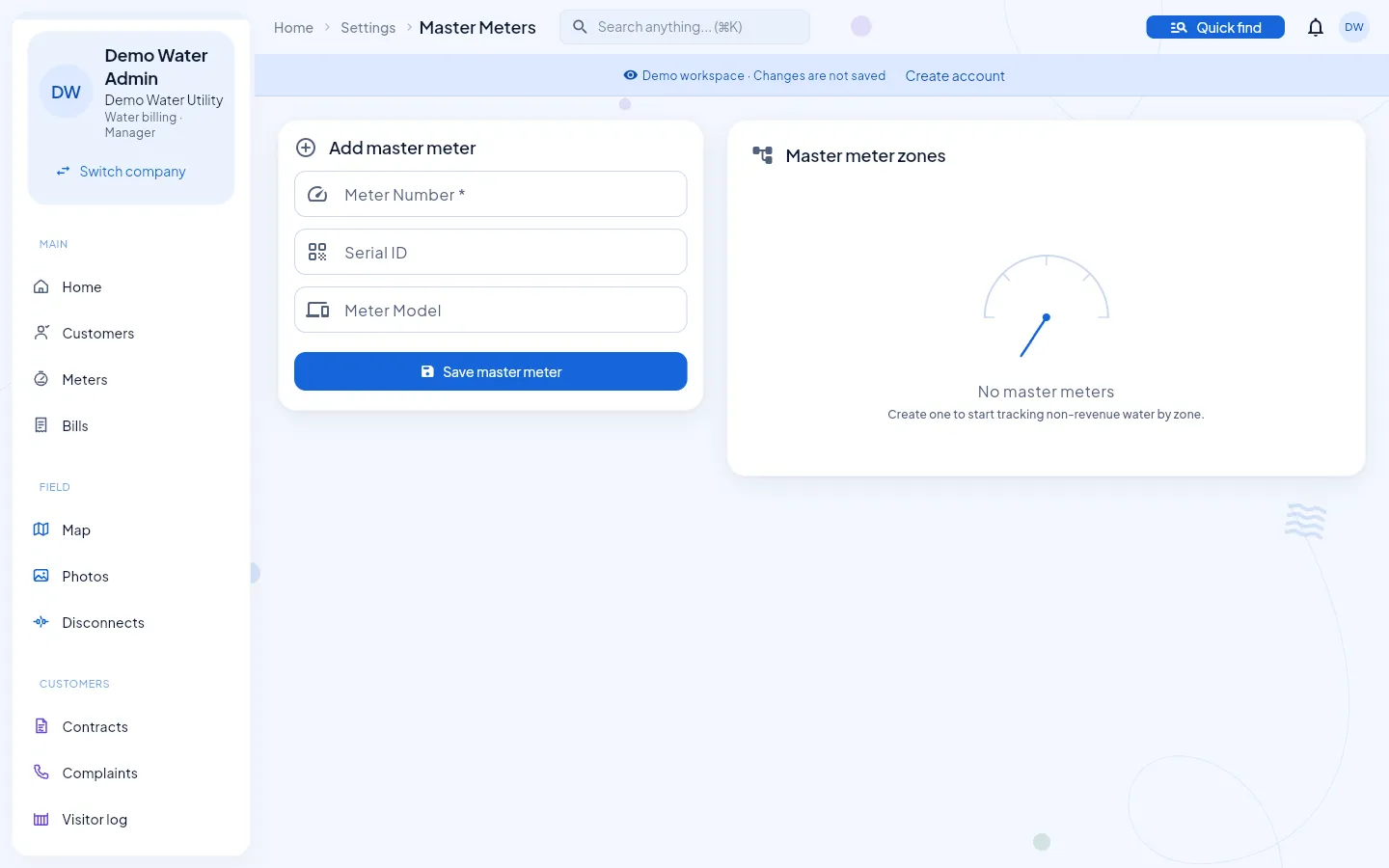
Create a master meter
Section titled “Create a master meter”- Open Settings, then Master Meters.
- Select Add master meter.
- Enter the Meter Number, and optionally the Serial ID and Meter Model.
- Select Save master meter.
Put customer meters in the zone
Section titled “Put customer meters in the zone”- When you install a meter, choose the Attached master meter in the New Installation wizard.
- For meters you already have, open the zone under Master meter zones, search under Zone meters, and select Add to zone. Use Remove to take one out.
Read a master meter
Section titled “Read a master meter”Open the zone and select Take reading to capture the master meter the same way you capture a customer meter.
Check the NRW tab
Section titled “Check the NRW tab”On Meters, Health, NRW, each zone compares Master input with Billed consumption of the meters in it. You get the NRW volume and percentage. The Data quality note says whether the comparison is Complete, Partial (some meters are missing readings), or Not computable.