QR Stickers and Field Map
Two field tools make readers faster: QR stickers open the right meter instantly, and the Map shows where every installation is.
Print QR stickers
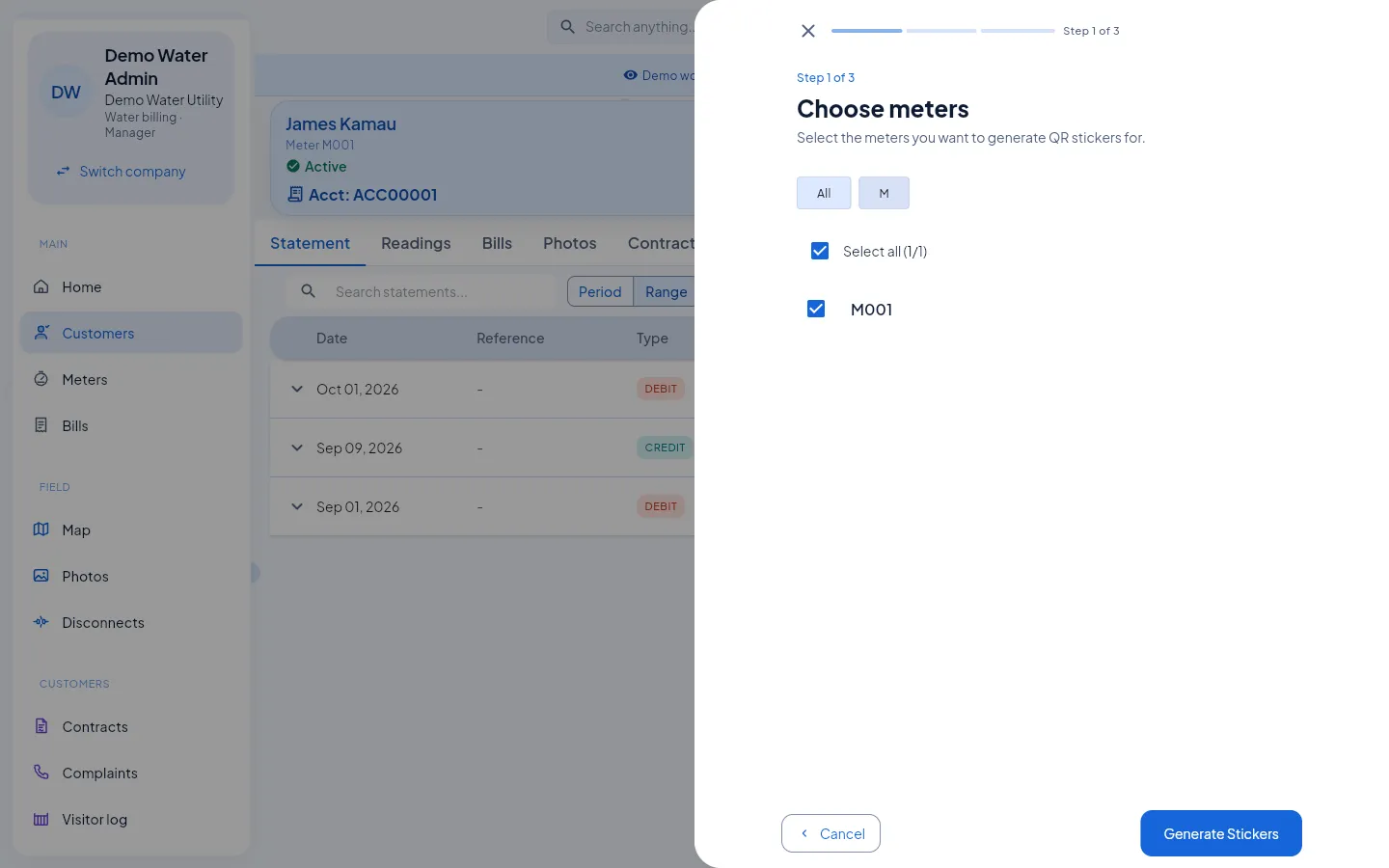
Section titled “Print QR stickers”- To print for one customer, open the customer and select QR stickers. To print for many, open Meters and select the QR icon (Print QR Stickers); the meters in your current list and filter are carried over.
- In Choose meters, select the meters you want. Use Select all for a whole block.
- Select Generate Stickers. TallyDue prepares a sheet and shows Generating stickers.
- When Your stickers are ready appears, choose Print, Download (a PDF named qr-stickers.pdf), or Share.
- Stick one on each meter box where it can be scanned in daylight.
Scan a sticker
Section titled “Scan a sticker”- Open Meters on your phone.
- Select Scan QR Code and point the camera at the sticker.
- The meter opens, ready for Take Reading.
See Meter readings for the rest of the reading flow.
Use the field map
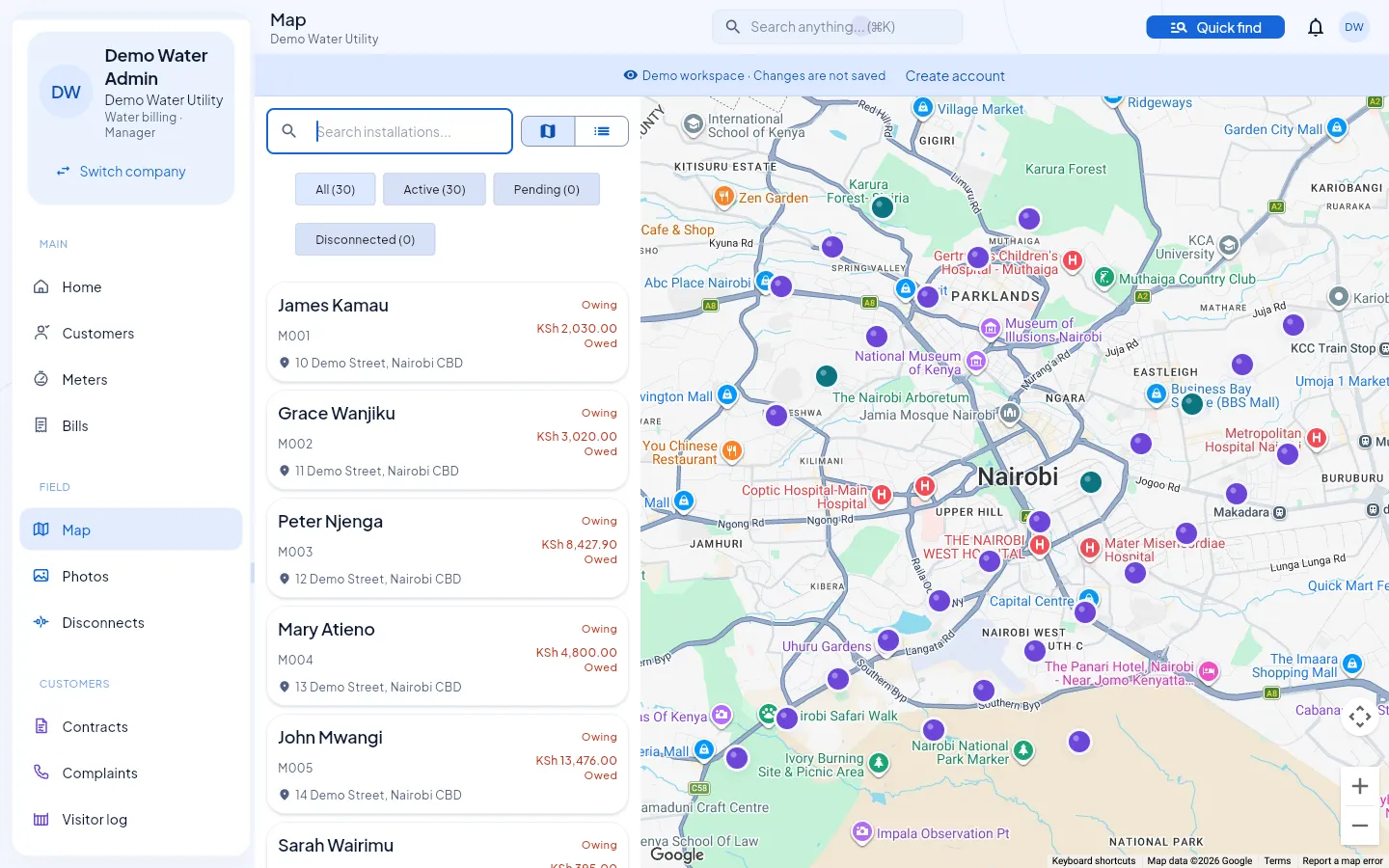
Section titled “Use the field map”- Open Map under Field in the sidebar.
- Each installation is a pin. The colour shows its state: Owing, Paid, Pending, or Disconnected.
- Select a pin to see the customer, meter number, balance, and address. Choose Details to open the customer or Navigate to get directions.
- Search for a customer, or filter by status, to narrow what you see.
- On a large screen the list sits beside the map. On a phone, switch between the map and the list.