Contracts and Signing
TallyDue turns a template into a lease contract filled with the tenant, unit and rent details, and lets the tenant sign online.
Create a contract template
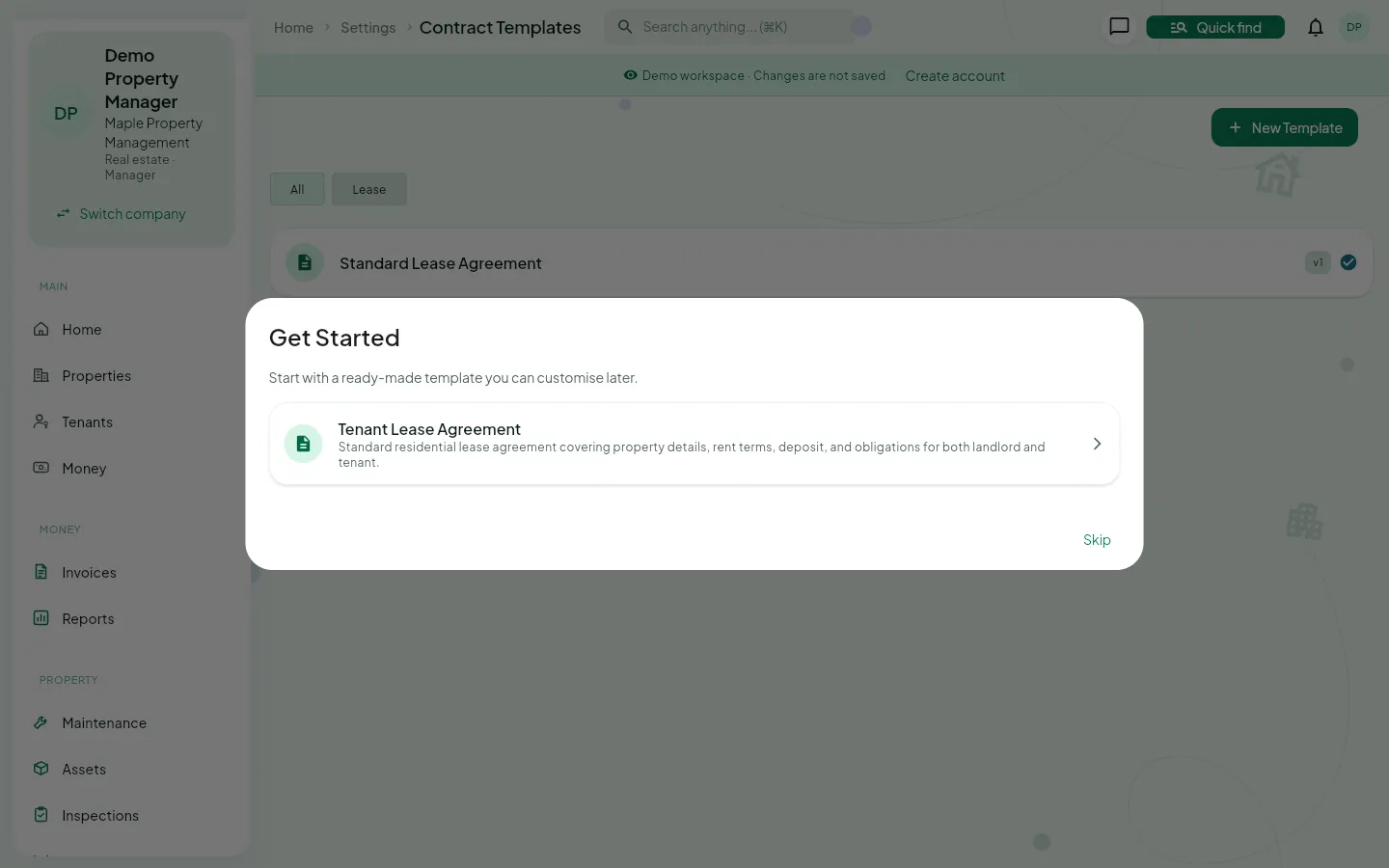
Section titled “Create a contract template”- Open Settings and select Contract templates (it says “Manage contract templates and merge fields”).
- On a new account, select Get Started to add a ready-made Tenant Lease Agreement you can customise later, or Skip.
- Select Create Template (or New Template).
- In the Editor tab, enter the Template Name, a Description and the Template Type. The type decides which merge fields are available: Lease for rent contracts.
- Write the contract text. Use Insert Field to add merge fields that fill in the tenant, unit and rent details when you generate a contract. Select Import from DOCX to start from a Word document.
- Check the Preview tab. It uses sample data; real values are filled in when you generate a contract. Your company letterhead is added automatically.
- Save the template.
Generate a contract
Section titled “Generate a contract”You can generate a contract during move-in, or later from the tenant.
- Open the lease’s contract page from the tenant record. Signed lease agreements are also kept on the tenant’s Documents tab.
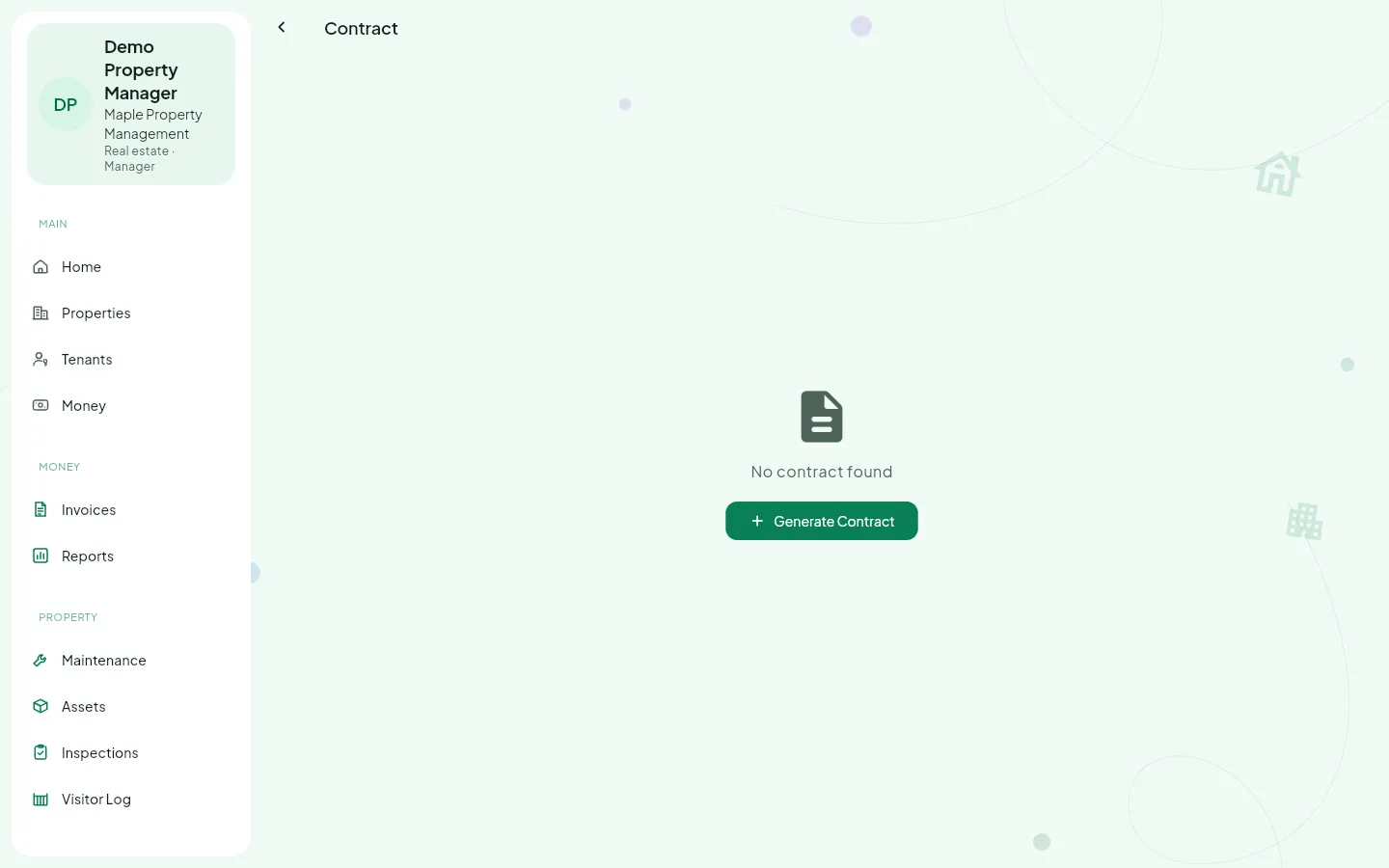
- If you see No contract found, select Generate Contract.
- Review the Contract Terms: tenant, property, unit, rent, start and end dates, and the Clauses.
In the move-in wizard the Contract card does the same. Choose Generate Basic Contract or generate from your template, then choose how to sign. If no template exists, the wizard asks you to set one up in settings, or you can Skip contract.
Get it signed
Section titled “Get it signed”A contract moves through Draft, Sent, Viewed and Signed. It can also be Expired or Voided.
- Send for Signing emails the tenant a private link. The tenant must have an email address on their record.
- Sign Now (In Person) (or Sign Contract on the contract page) lets you hand over your device. Draw the signature in the box, use Clear to start again, and select Confirm Signature.
- Resend sends the link again.
- Void cancels a contract. This cannot be undone.
- Download PDF saves a copy.
The contract page also shows the Landlord Signature and Tenant Signature with the date each was signed.
What the tenant sees
Section titled “What the tenant sees”The tenant opens the link on any phone or computer, with no sign-in.
- Read the Contract Details and fill any fields requested.
- Tick I agree to sign this document electronically.
- Draw the signature under Your Signature.
- Select Sign & Submit.
They see Contract Signed Successfully and a copy is sent to their email.
Track contracts waiting for a signature
Section titled “Track contracts waiting for a signature”- Open Tenants and select the Pending tab.
- Each row shows a contract that is Sent or Viewed and the date it was sent.
- Open one to Resend it or follow up with the tenant.
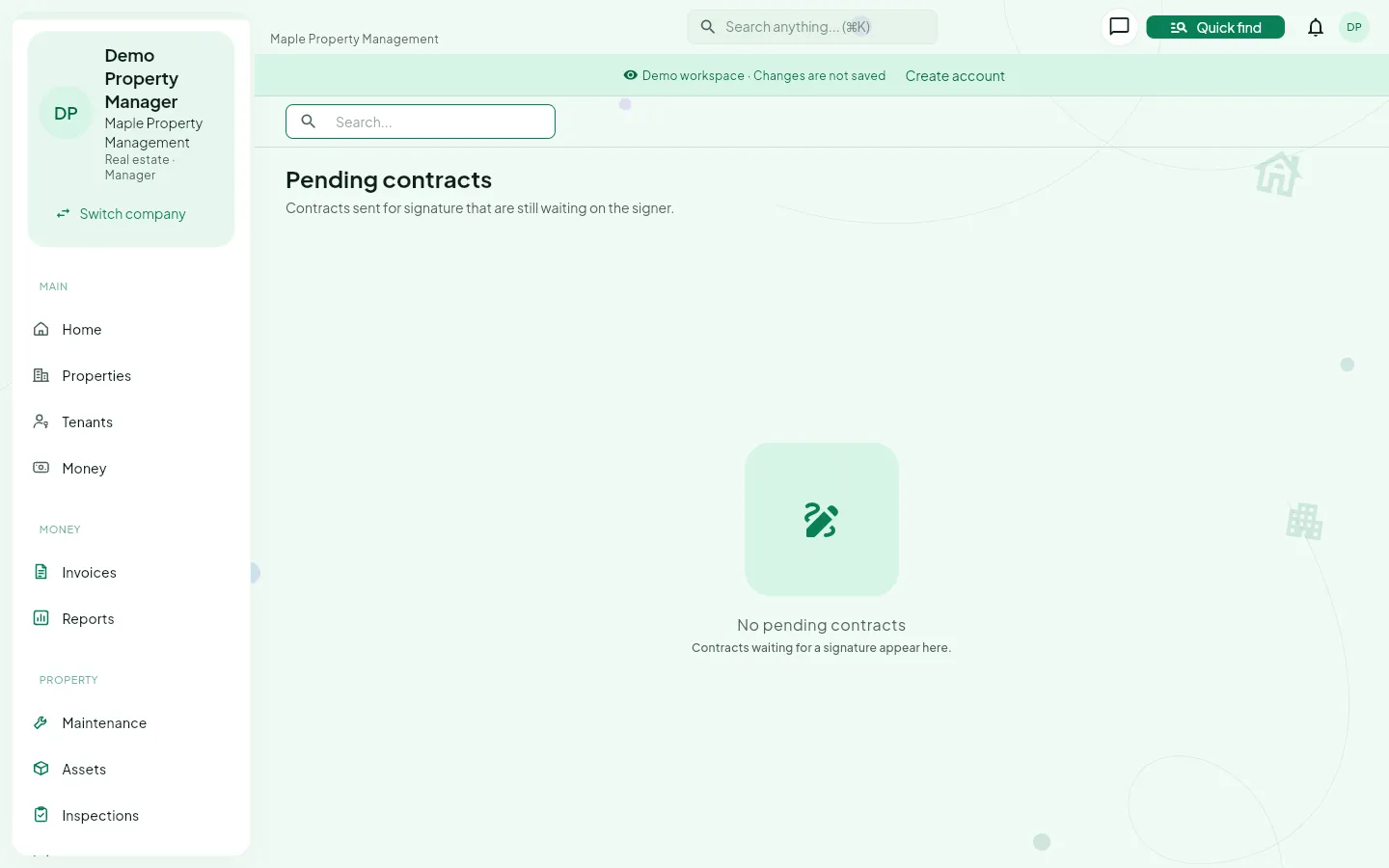
When nothing is waiting, the page reads No pending contracts.