Invoices
TallyDue creates a monthly invoice for each tenant from their rent and recurring charges. You can also create one-off invoices.
Find an invoice
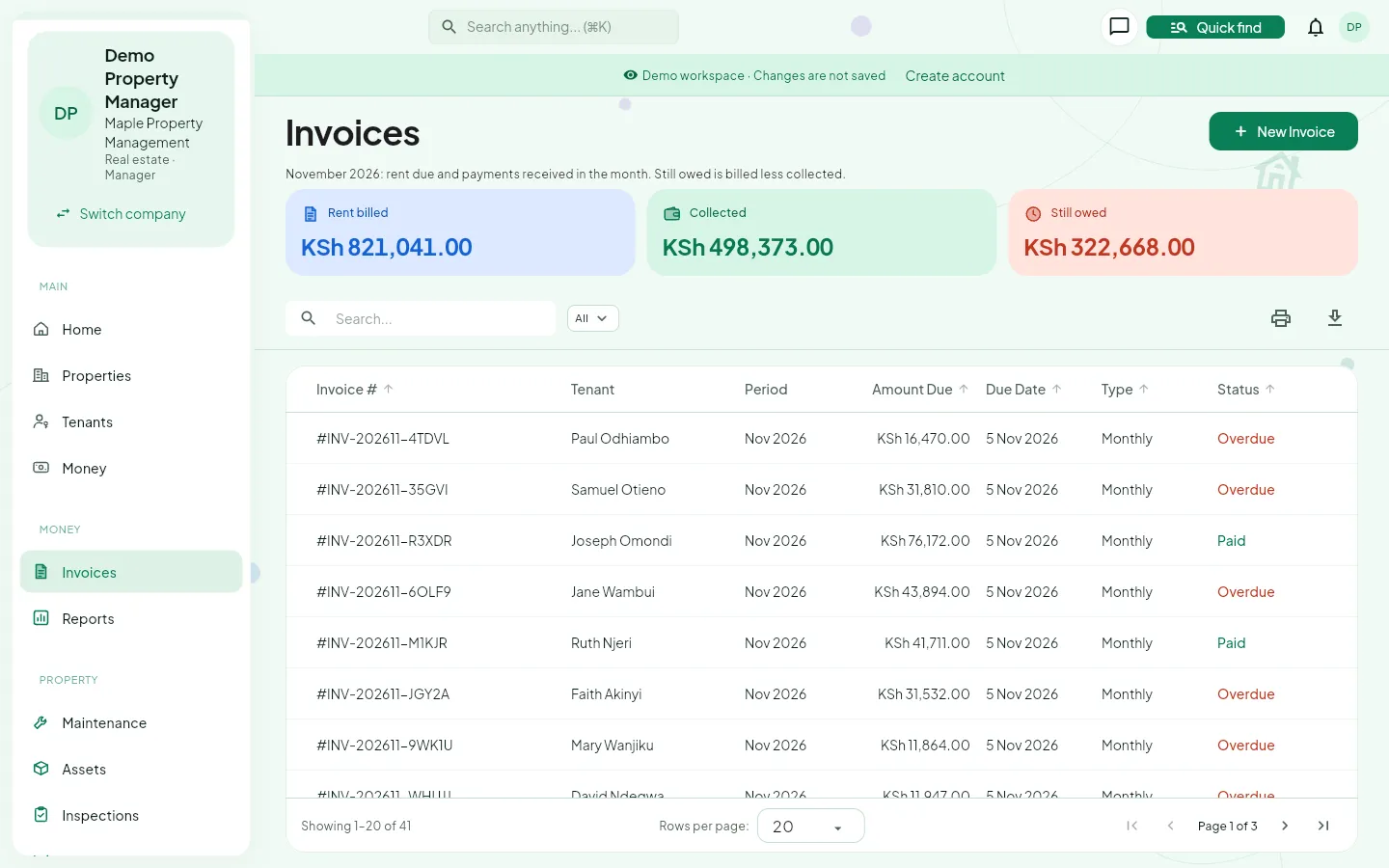
Section titled “Find an invoice”- Open Invoices in the left menu.
- Read the month’s cards: Rent billed, Collected and Still owed.
- Search by invoice number or tenant, or filter by status: Draft, Issued, Paid, Overdue or Cancelled.
- Each row shows Invoice #, Tenant, Period, Amount Due, Due Date, Type and Status.
- Use Print or Download for the list.
Create a one-off invoice
Section titled “Create a one-off invoice”- Select New Invoice.
- Choose the Property and Unit.
- Choose the type, for example Rent, Service Charge, Utility, Maintenance, Parking, Pet Fee, Damage, Late Fee or Other.
- Enter the Amount, Billing Period (as YYYY-MM), Due Date, a Description and any Notes.
- Select Create Invoice.
Read an invoice
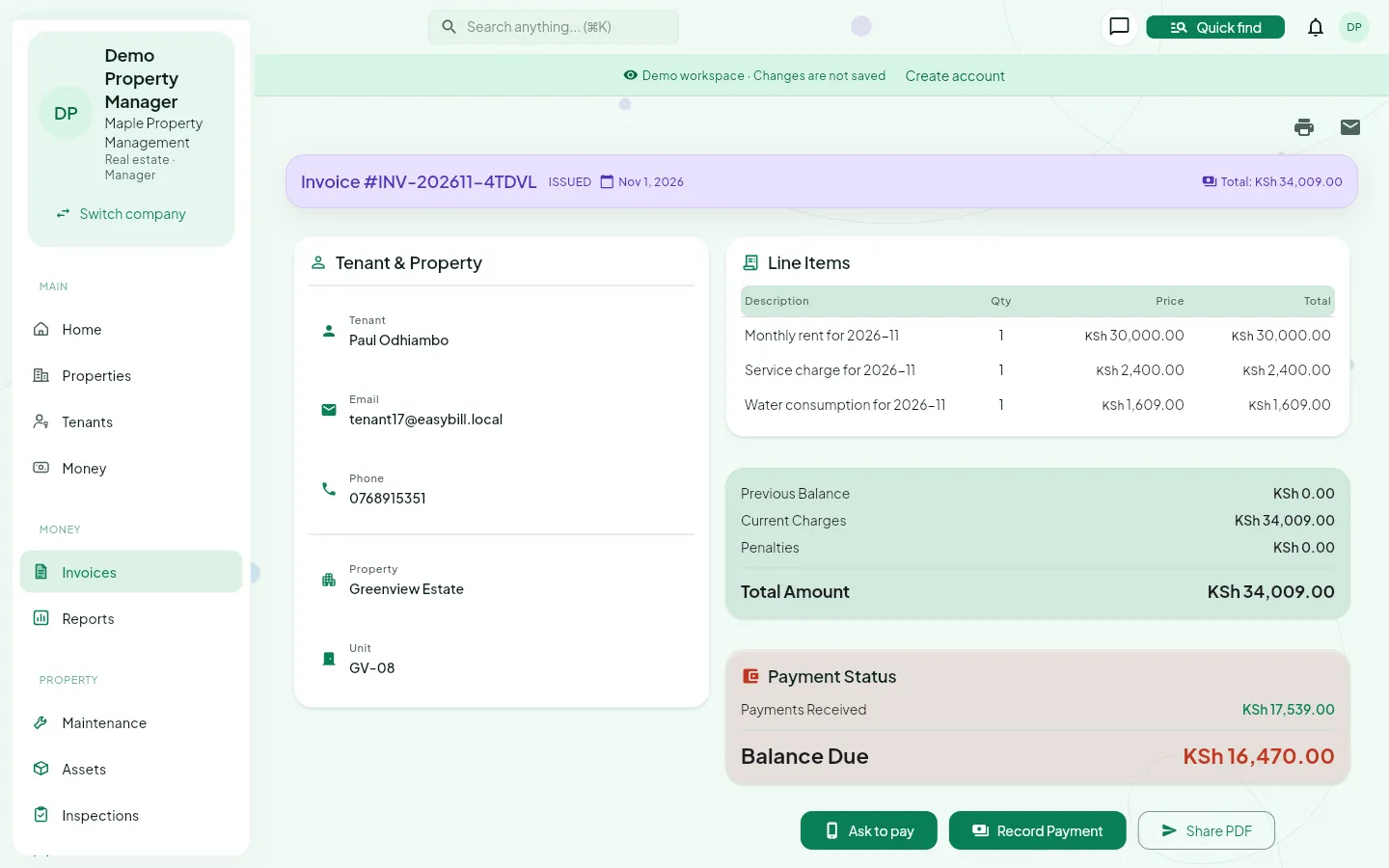
Section titled “Read an invoice”Open a row to see the invoice.
- Tenant & Property shows the tenant’s contact details and the unit.
- Line Items lists each charge with quantity, price and total.
- The summary shows Previous Balance, Current Charges, Penalties and Total Amount.
- Payment Status shows Payments Received and Balance Due.
Send, print and collect
Section titled “Send, print and collect”On the invoice:
- Select Email Invoice to send it to the tenant’s email.
- Select Share PDF to send the PDF another way, or Print.
- Select Ask to pay to send the tenant an M-Pesa payment request.
- Select Record Payment when you receive money (see Rent and charges).
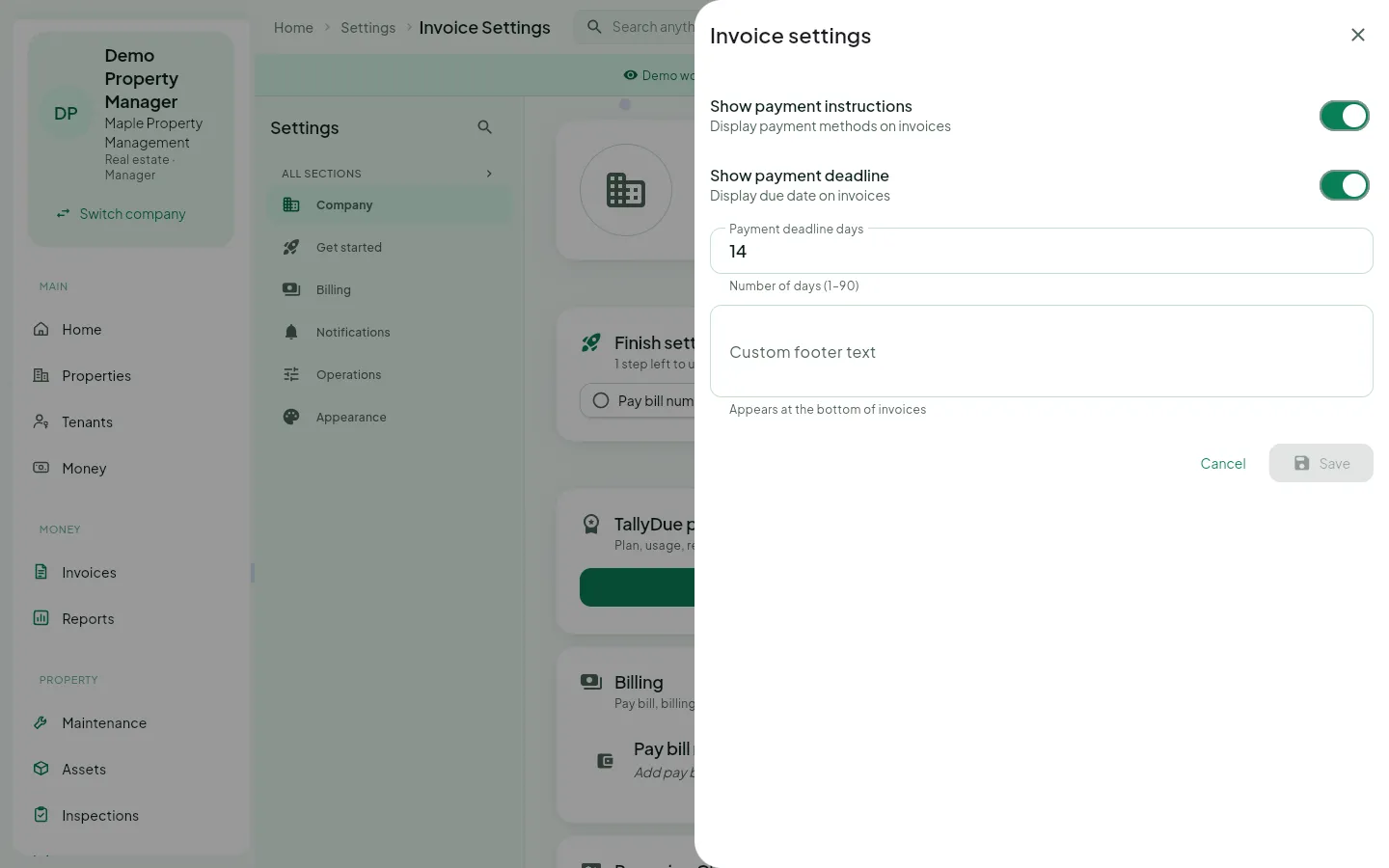
Invoice settings
Section titled “Invoice settings”- Open Settings and select Invoice customisation.
- Turn on Show payment deadline and set the Payment deadline days (1 to 90).
- Turn on Display due date on invoices and Display payment methods on invoices or Show payment instructions as needed.
- Add Custom footer text, which appears at the bottom of invoices.
- Turn on Include meter photos to attach meter reading images to invoices.
- Select Save.