Bookings and Calendar
Bookings lists every stay and Calendar shows them against your units. Use them together: add a booking, then check it on the calendar. If you have not set up units yet, start with the Short-Stay Quick Start.
Read the Bookings page
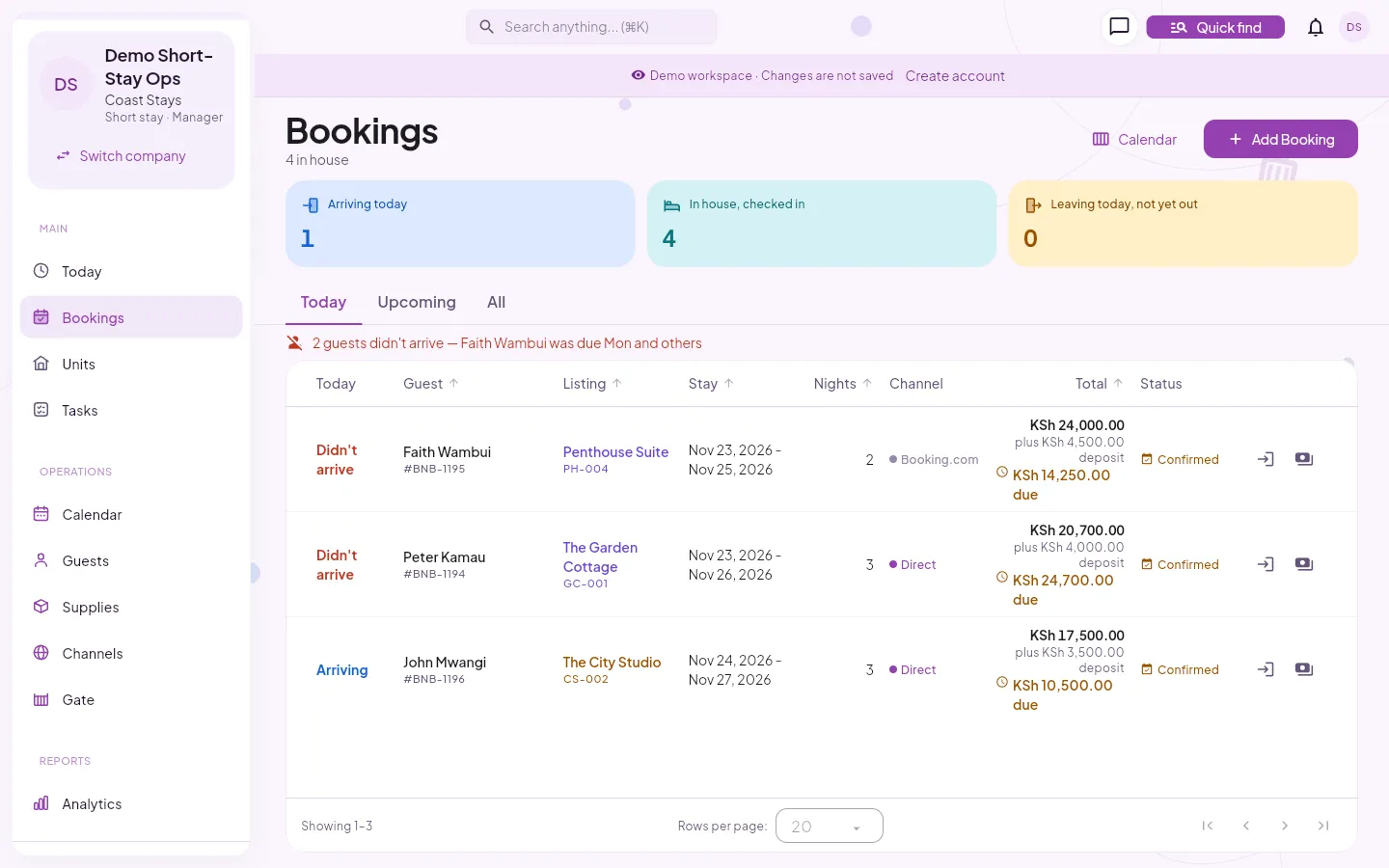
Section titled “Read the Bookings page”- Select Bookings in the left menu.
- Check the three counters at the top: Arriving today, In house, checked in, and Leaving today, not yet out.
- Pick a tab:
- Today shows bookings that need action today.
- Upcoming shows stays still to come.
- All shows every booking.
- Read each row: guest and booking number, listing, stay dates, nights, channel, total, and status. Where a deposit applies, the row shows the amount still due.
A red line above the table warns you when guests did not arrive on their due date. The row is marked Didn’t arrive so you can follow up or update the booking.
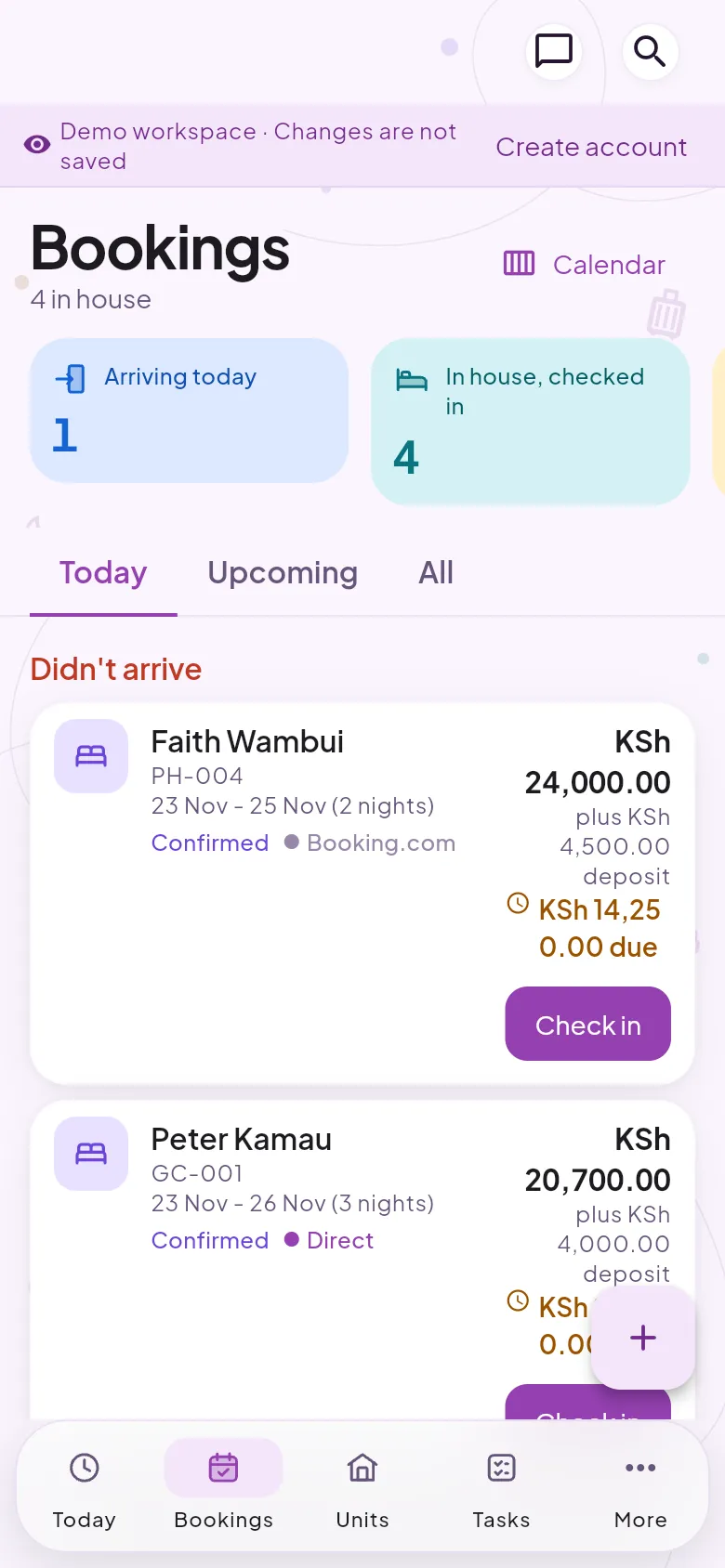
On a phone the same page is a list of cards.
Add a booking
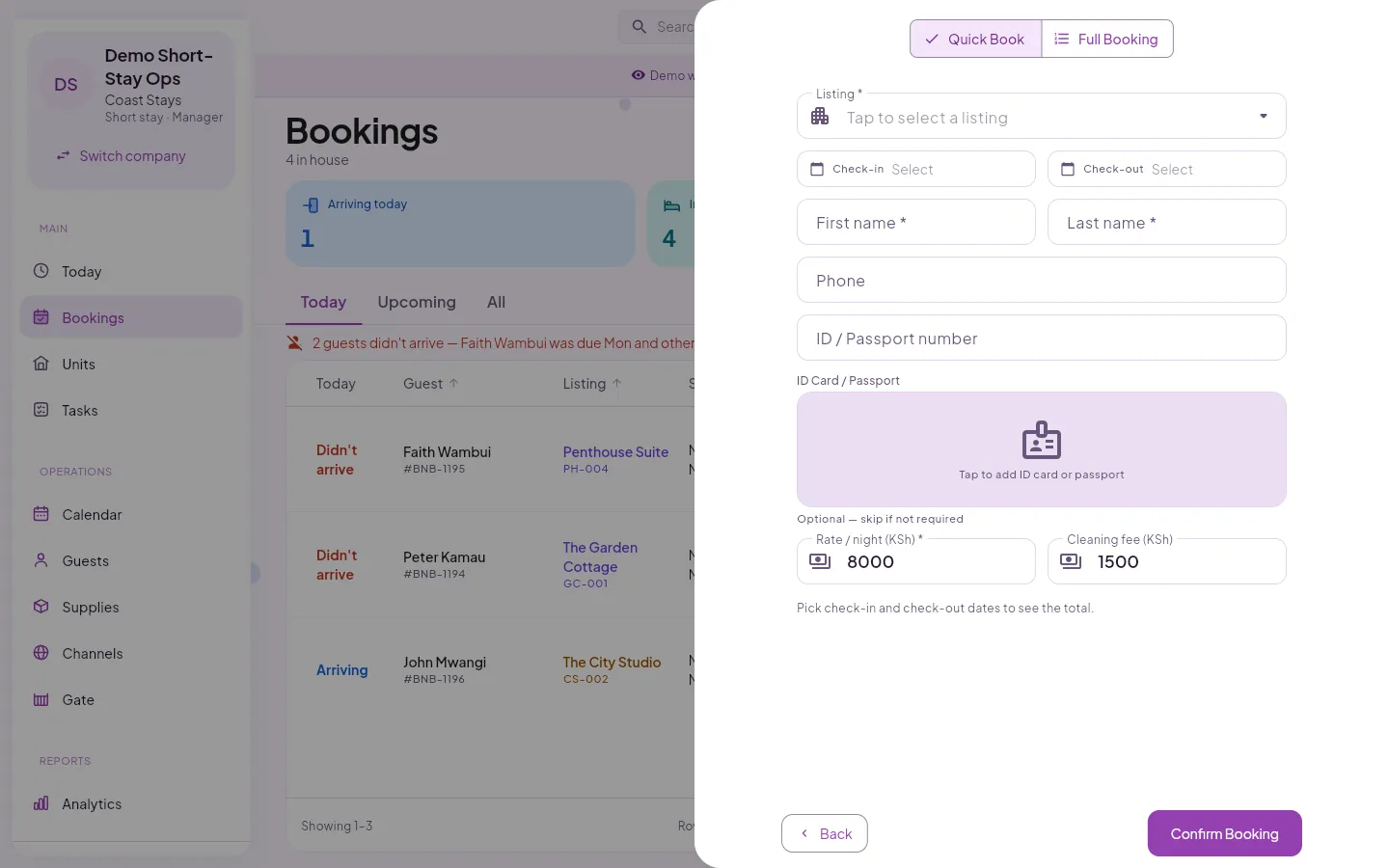
Section titled “Add a booking”- On Bookings, select Add Booking. You can also use New Booking on the calendar.
- Choose how much detail you need:
- Quick Book takes only the essentials.
- Full Booking walks you through the stay in more steps.
- Select the Listing.
- Pick the Check-in and Check-out dates.
- Enter the guest’s First name and Last name. Add Phone and ID / Passport number if you have them. You can also attach a photo of the ID card or passport. It is optional.
- Check Rate / night (KSh) and Cleaning fee (KSh). Change them if this stay is priced differently.
- Once both dates are set, the form shows the total. Select Confirm Booking.
Use the calendar
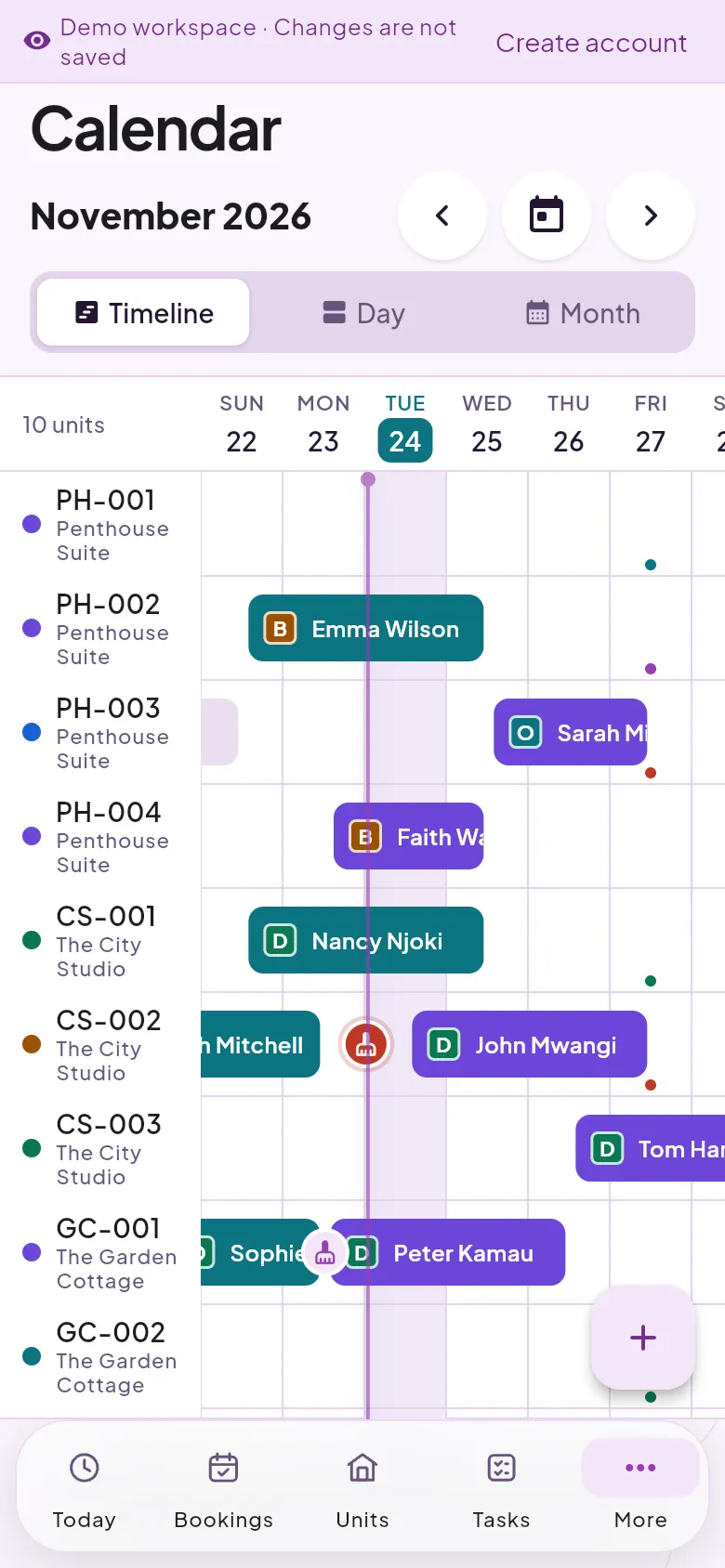
Section titled “Use the calendar”Select Calendar in the left menu. Each unit is a row and each booking is a bar across its nights. Bars show the guest’s name, and a letter badge shows the channel (for example A for Airbnb, B for Booking.com, D for Direct).
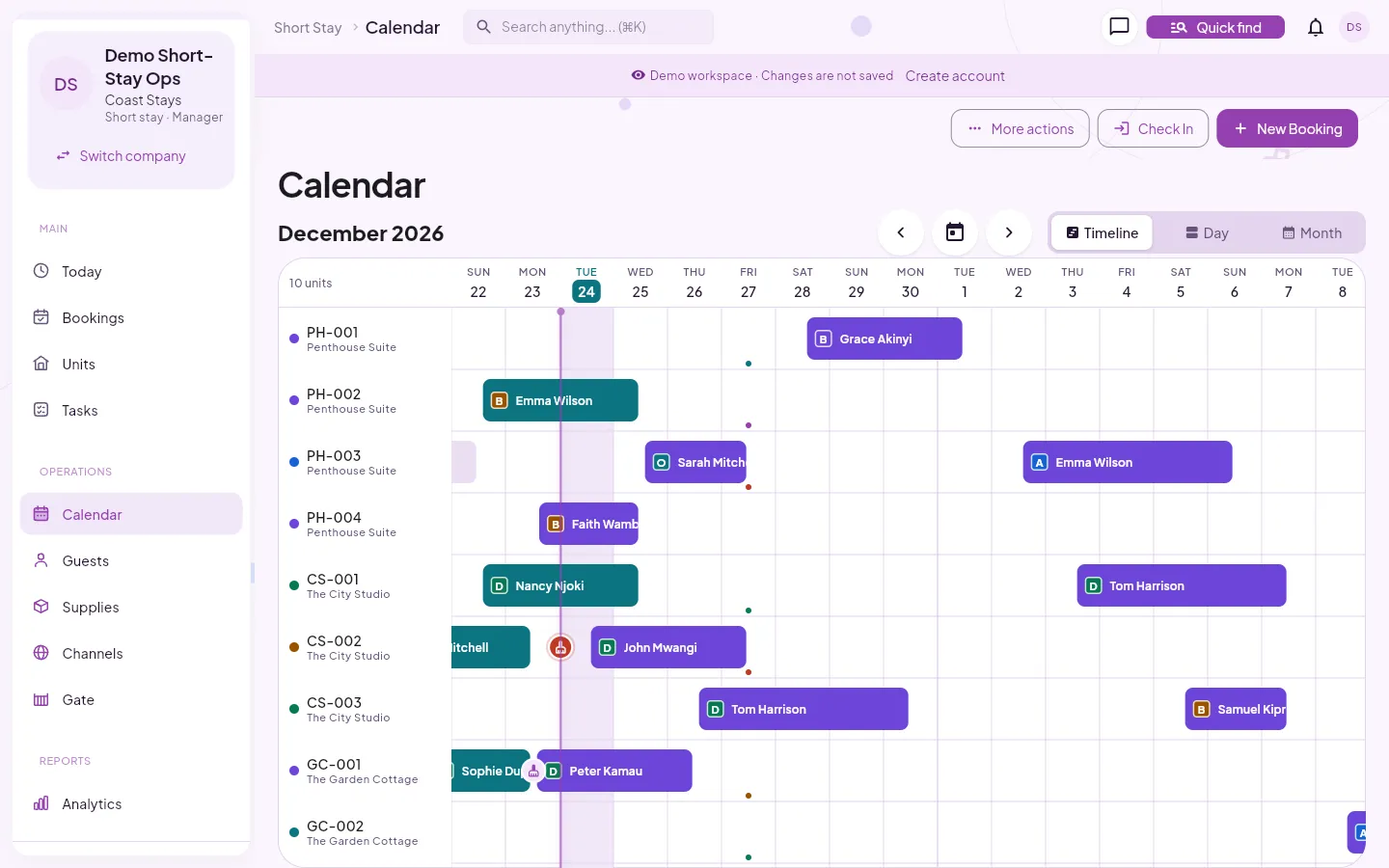
- Choose a view with the switcher at the top right:
- Timeline shows all units side by side across several weeks.
- Day shows what happens on one day.
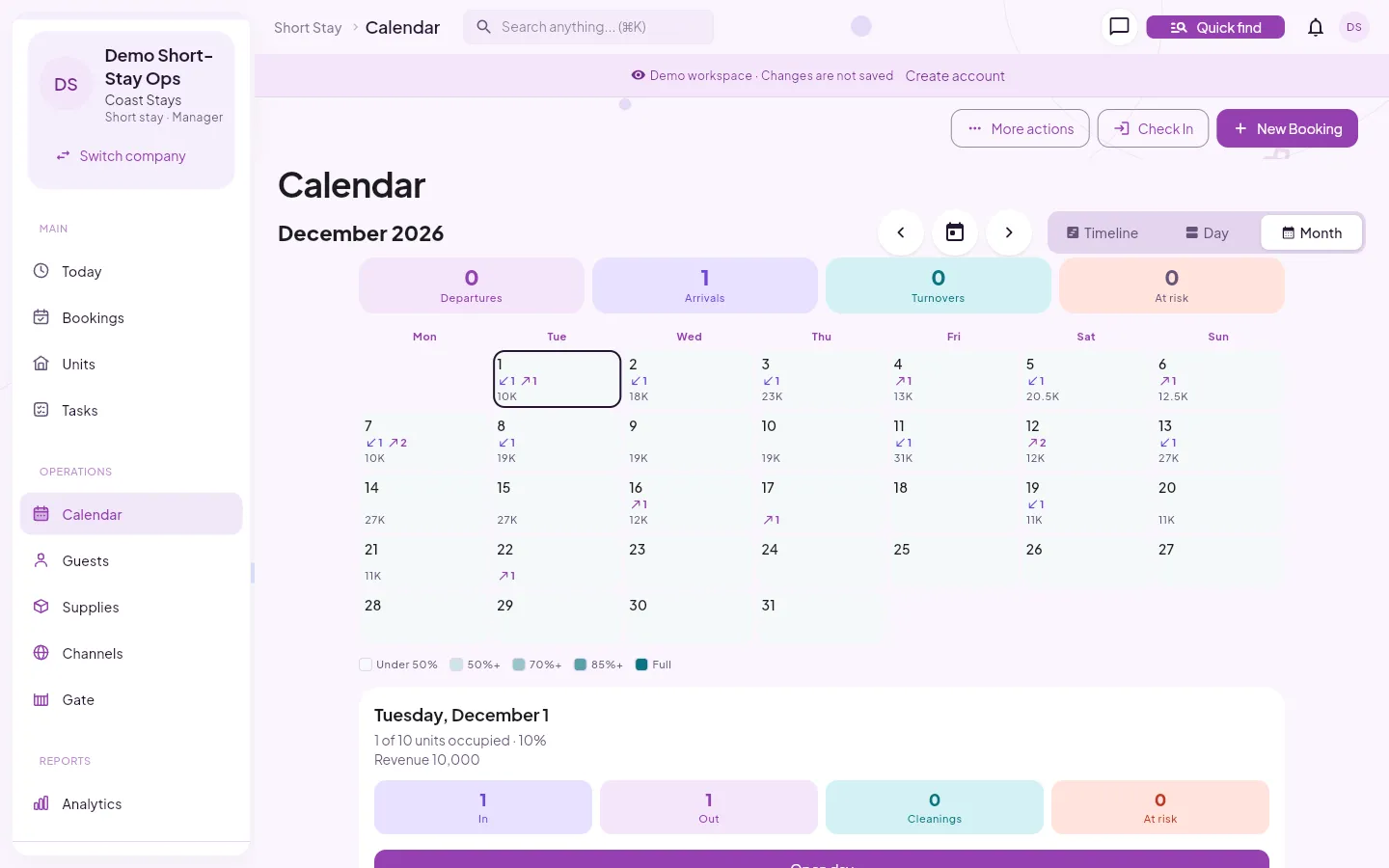
- Month shows the whole month with arrivals, departures, and how full you are each day.
- Use the arrows to move back or forward, and the calendar button to jump to today.
- Open a bar to see the stay.
- Select New Booking to sell an empty slot, or Check In to check a guest in. More actions holds the other calendar actions.
On a phone, the calendar fits the narrow screen.
Month view
Section titled “Month view”The Month view summarises each day by its arrivals, departures, and the percentage of units occupied. At the top it counts Departures today, Arrivals today, Turnovers today, and At risk today.
Block dates
Section titled “Block dates”To keep dates free for an owner stay, repairs, or time off, choose to block dates when you select an empty slot on the calendar, and pick the reason. To release them, open the block and select Remove block. A block that comes from a channel calendar changes on that channel, not in TallyDue.