Tasks and Supplies
Tasks keeps your team on top of turnovers and repairs. Supplies tells you what to restock.
Review tasks
Section titled “Review tasks”- Select Tasks in the left menu.
- Check the counters: Due this month, In progress, and Overdue.
- Narrow the list with the Type and Status filters.
- Read each row: task, unit, type, status, priority, due date, and who it is assigned to.
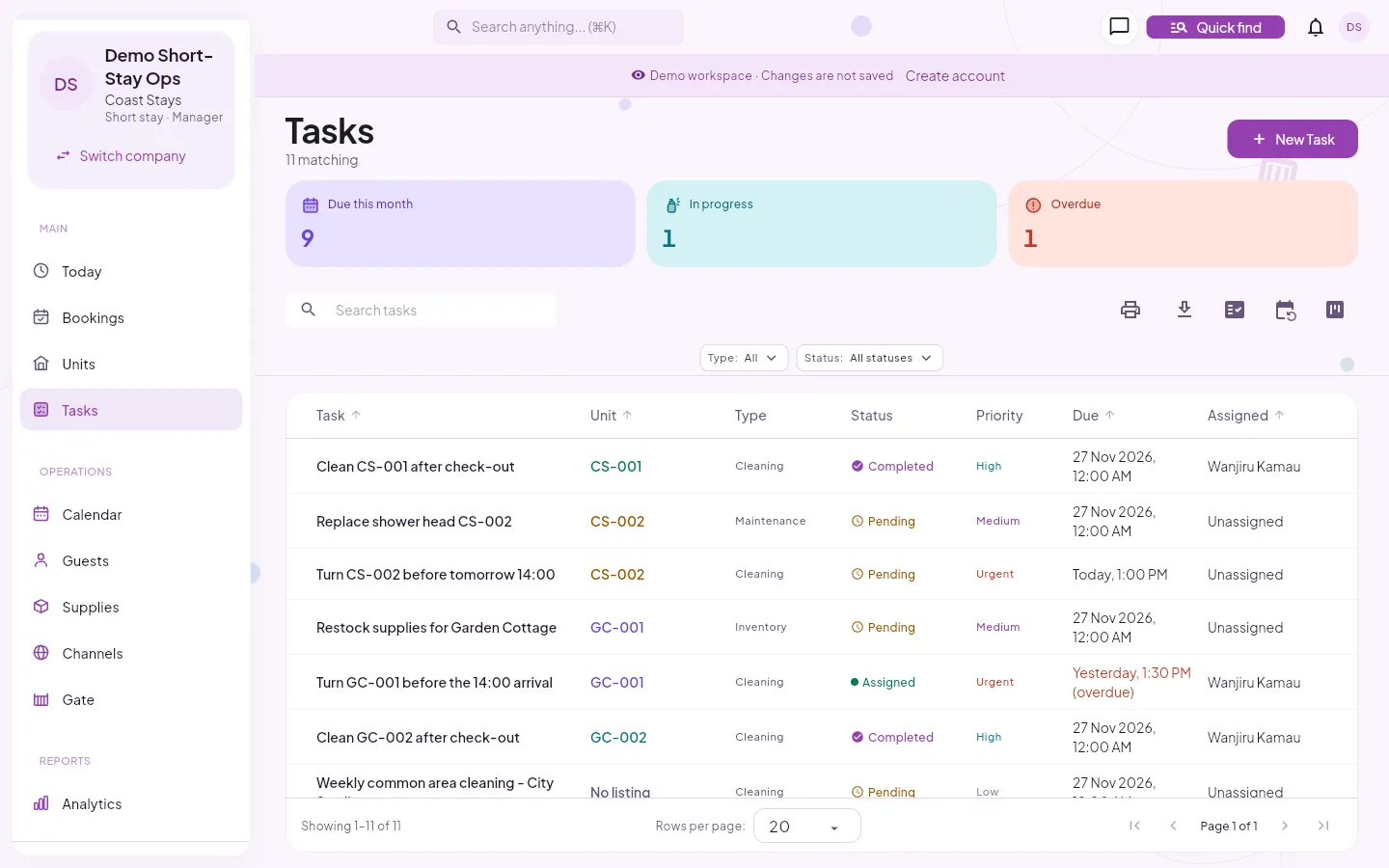
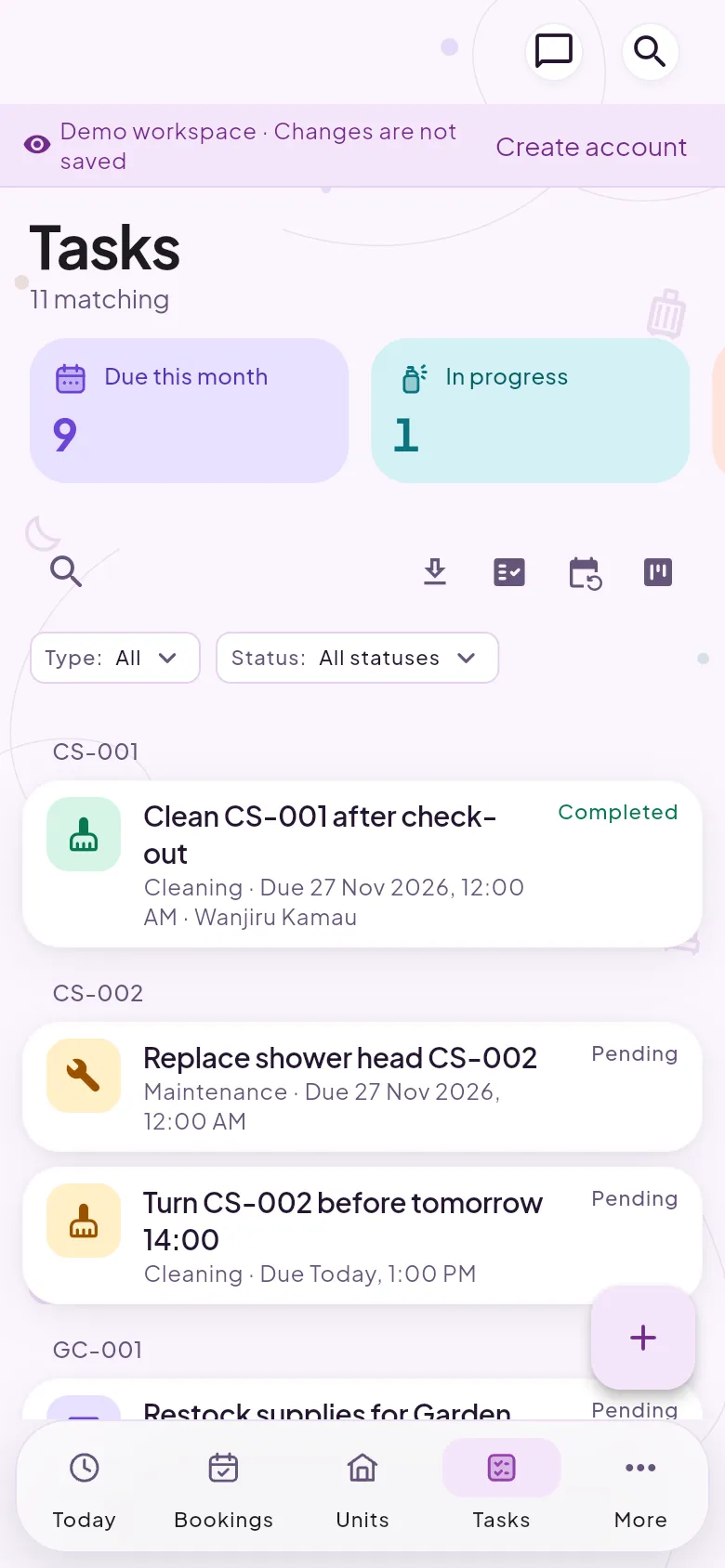
On a phone the tasks appear as cards.
Switch to the board
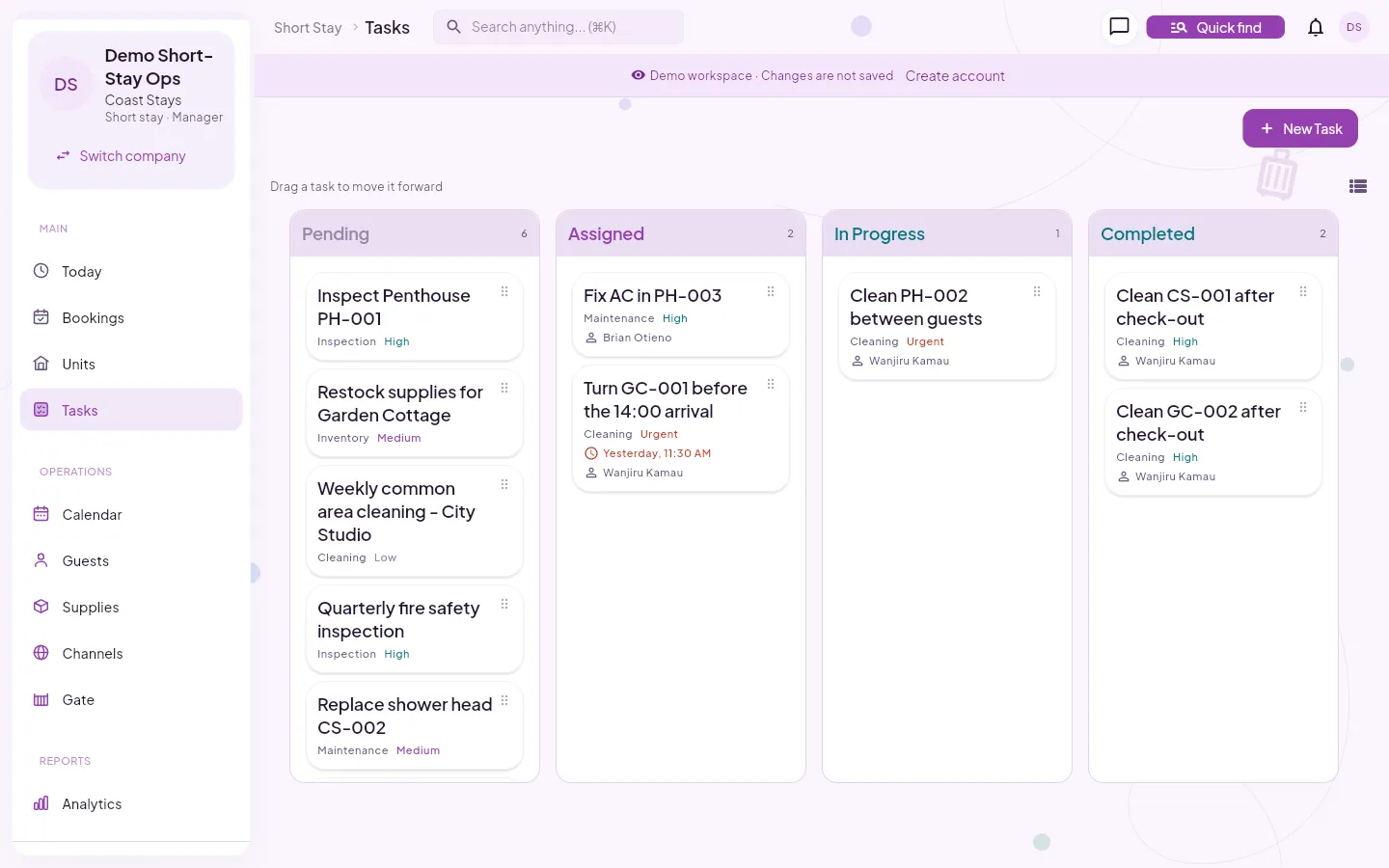
Section titled “Switch to the board”Select Kanban view to see tasks in columns: Pending, Assigned, In Progress, and Completed. Drag a task to the next column as work moves forward. Select List view to go back.
Create a task
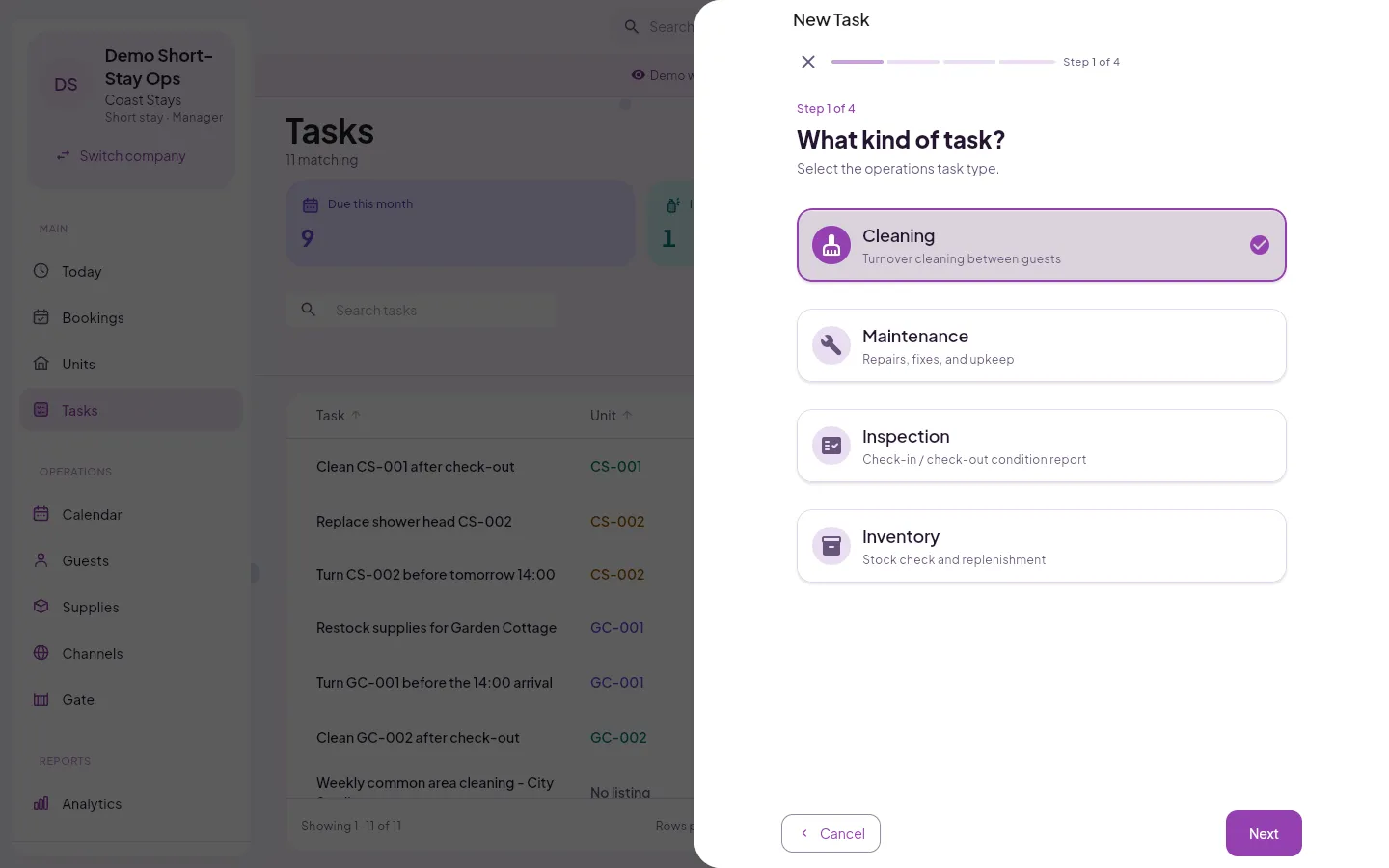
Section titled “Create a task”- Select New Task.
- Type: choose Cleaning, Maintenance, Inspection, or Inventory, then Next.
- Details: enter the task title and the unit it is for.
- Schedule: set when it is due and who it is assigned to.
- Checklist: add the steps the person should tick off, then create the task.
The wizard has four steps and you can go Back at any time.
For a condition report on a unit, use New inspection next to New Task.
Repeat tasks automatically
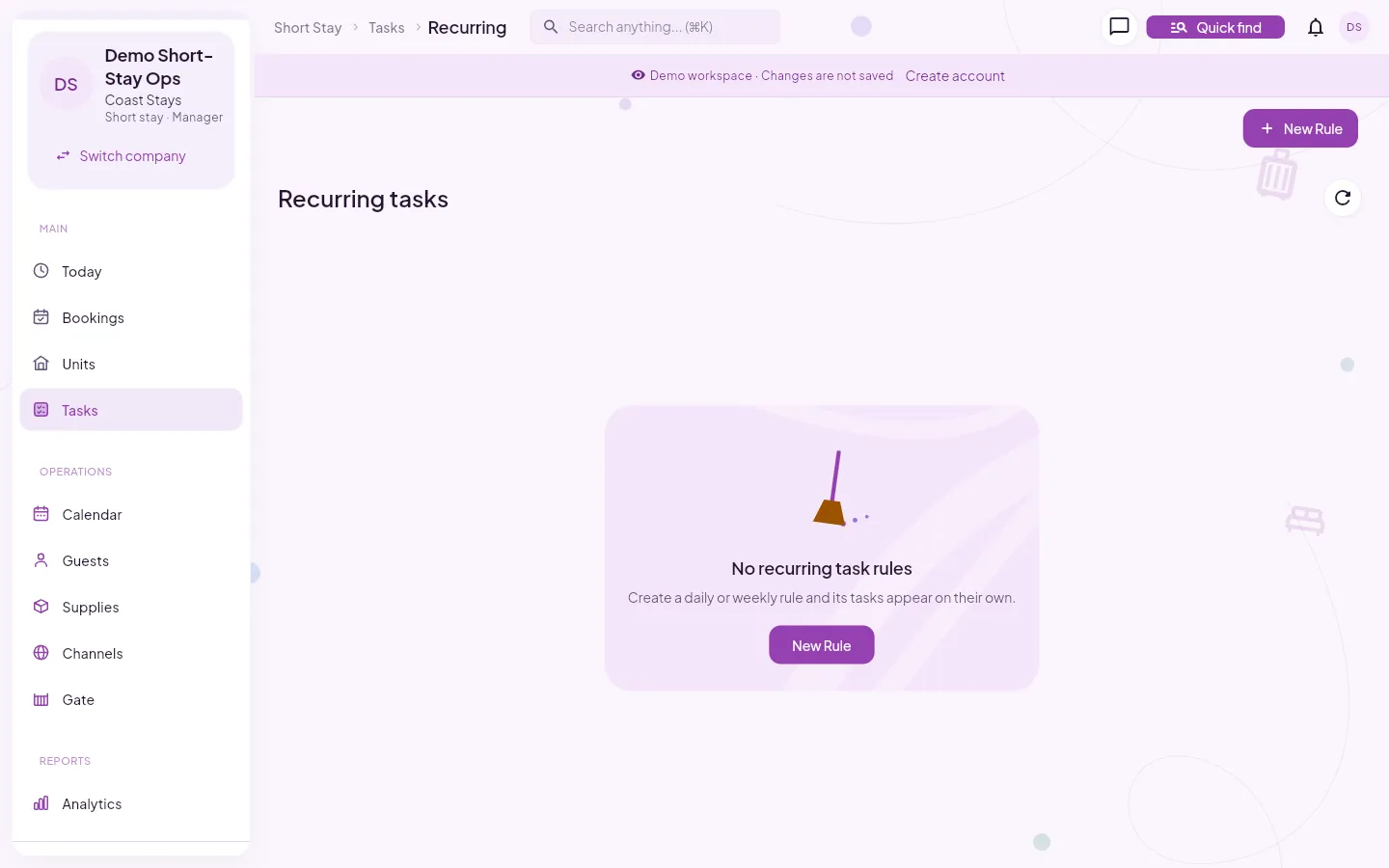
Section titled “Repeat tasks automatically”- On Tasks, select Recurring tasks.
- Select New Rule.
- Set the task and how often it repeats, then save.
Use recurring tasks for work like weekly common-area cleaning.
See your team
Section titled “See your team”The Team page lists the people with access to the company, their roles, and their status. Pick a name to see their details.
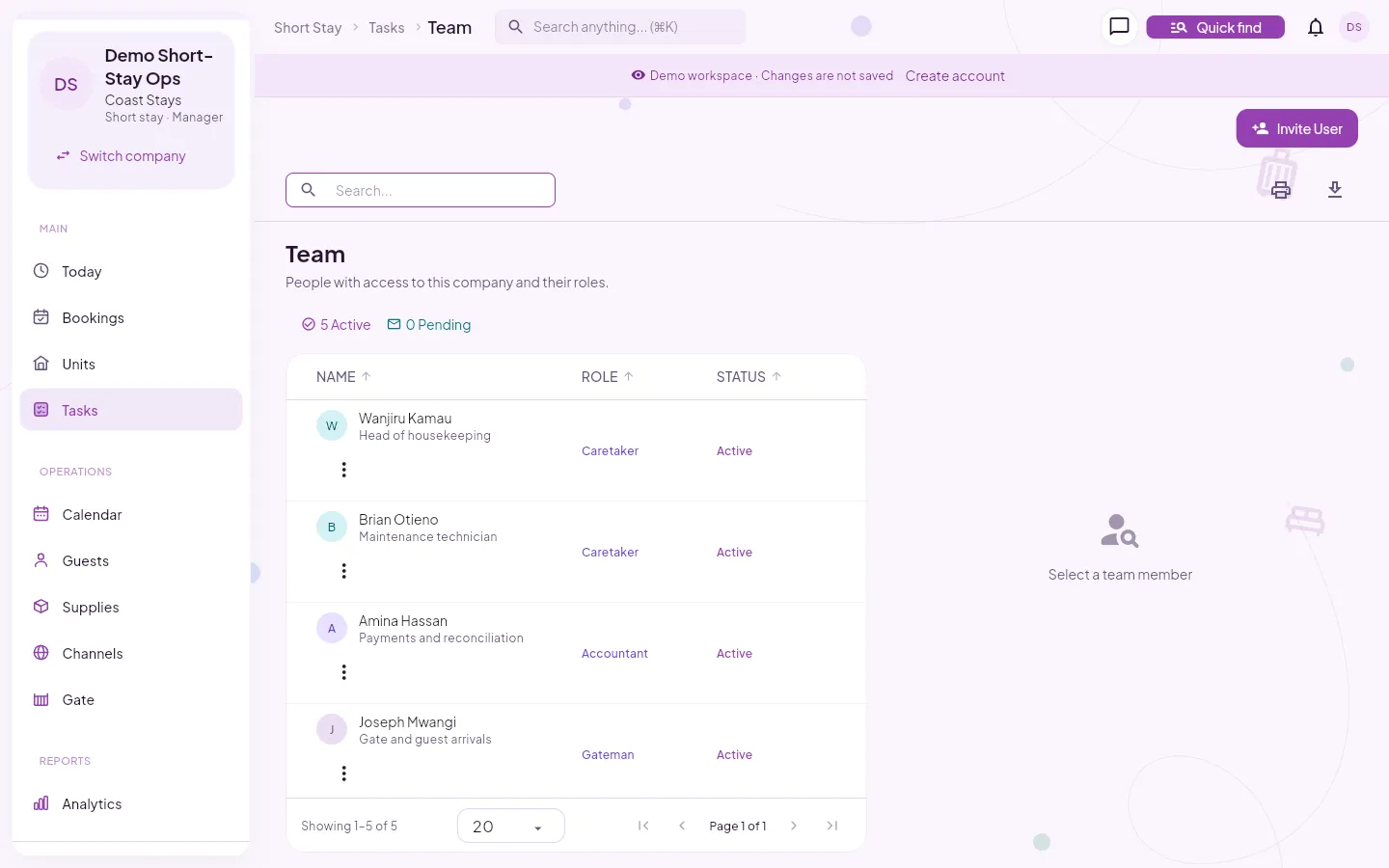
To have new turnover tasks go to one person by default, set Default cleaner in the short-stay settings. If it is Not set, turnovers are auto-assigned.
Keep supplies stocked
Section titled “Keep supplies stocked”Select Supplies in the left menu. The counters show Need restock, Out of stock, and how many items are in Main Store.
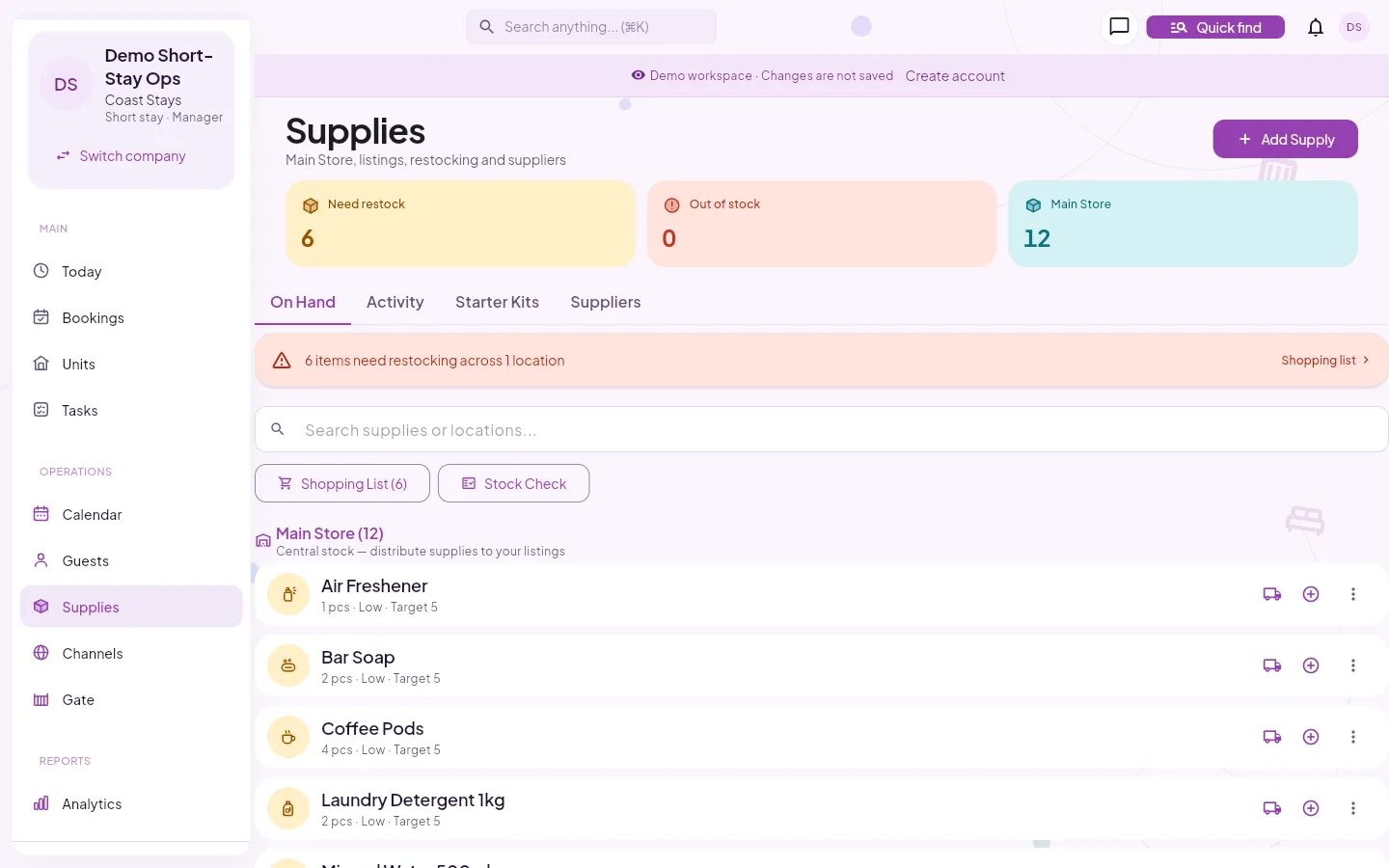
The page has four tabs:
- On Hand lists items by location, with the quantity, level (for example Low), and target.
- Activity records restocks and use.
- Starter Kits are ready-made sets of supplies for a unit.
- Suppliers are the shops you buy from.
Restock
Section titled “Restock”- On On Hand, select Shopping List to see everything below its target.
- Buy the items, then select Restock on an item to record the new quantity. Items in Main Store can also be moved with Distribute to listing.
- After counting shelves, use Stock Check to update quantities.
Add a supply
Section titled “Add a supply”Select Add Supply, enter the item, and save it.